> ## Documentation Index
> Fetch the complete documentation index at: https://docs.firstresonance.io/llms.txt
> Use this file to discover all available pages before exploring further.
# MCP
> Connect AI agents like OpenAI Codex, Claude, and Cursor to ION through the Model Context Protocol (MCP) server.
The Model Context Protocol (MCP) is a standard interface that AI agents use to interact with ION. Agents like OpenAI Codex, Claude, and Cursor connect to the ION MCP server. A connected agent can query and act on your ION data in natural language. You can also build custom agents on top of ION with SDKs such as the AWS Strands SDK.
The ION MCP server is in beta. If you want to build on top of ION, reach out
and we can help.
## Authentication
The MCP server uses OAuth 2.1 dynamic client registration (DCR). You need an existing ION account to authenticate.
## Environments
Each environment has its own MCP server URL. Use the URL for the environment you want to connect to. If you need an environment that isn't listed, let us know.
| Environment | URL |
| --------------------- | ---------------------------------------------- |
| staging-pub (sandbox) | `https://mcp.staging.buildwithion.com/mcp` |
| staging-gov (sandbox) | `https://mcp.staging.gov.buildwithion.com/mcp` |
| staging-aus (sandbox) | `https://mcp.staging.ap.buildwithion.com/mcp` |
| production-pub | `https://mcp.buildwithion.com/mcp` |
| production-gov | `https://mcp.gov.buildwithion.com/mcp` |
| production-aus | `https://mcp.ap.buildwithion.com/mcp` |
## Connect your agent
You need OpenAI Codex installed and signed in to connect to the ION MCP server.
1. In your terminal, add the ION MCP server. Swap the name and URL for the environment you want:
```bash theme={null}
codex mcp add ion --url https://mcp.staging.buildwithion.com/mcp
```
2. Sign in to ION through Codex:
```bash theme={null}
codex mcp login ion
```
3. Complete the ION sign-in flow in your browser.
4. Run `codex mcp list`, or use `/mcp` in the Codex terminal UI, to confirm the server is connected.
5. Ask Codex for a list of things it can do in ION. This confirms the connection and shows you its capabilities.
Codex stores MCP server configuration in `~/.codex/config.toml`. The Codex CLI and Codex IDE extension use the same configuration.
You need a Claude Pro plan or above to connect to the ION MCP server.
1. In Claude, go to **Your Profile > Settings > Connectors**. Click **Add custom connector**.
2. Enter a name and the MCP URL for the environment you want. For example, use the name `ION-SANDBOX` and the URL `https://mcp.staging.buildwithion.com`.
3. Click **Connect**. Claude prompts you to sign in to ION.
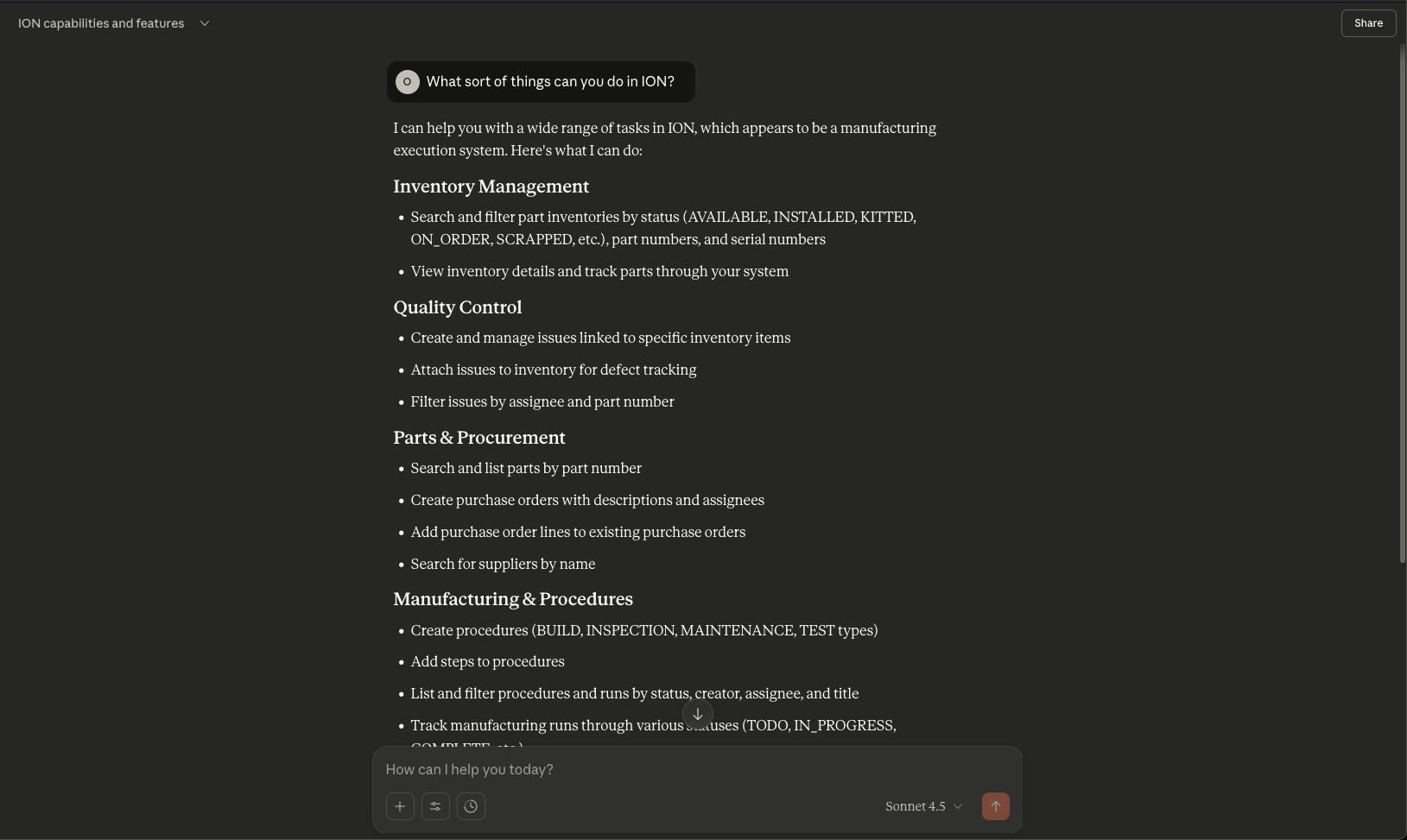
4. Ask Claude for a list of things it can do in ION. This confirms the connection and shows you its capabilities.
 You need a Cursor plan to use Cursor.
1. Open Cursor and go to **Cursor Settings**.
2. Click **Tools and MCP > Add an MCP Server**.
3. Enter this configuration. Swap the name and URL for the environment you want. You can add more than one:
```json theme={null}
{
"mcpServers": {
"ion": {
"url": "https://mcp.staging.buildwithion.com/mcp"
}
}
}
```
4. Turn on **Agent** mode. The chat window starts in **Ask** mode, which doesn't allow MCP servers.
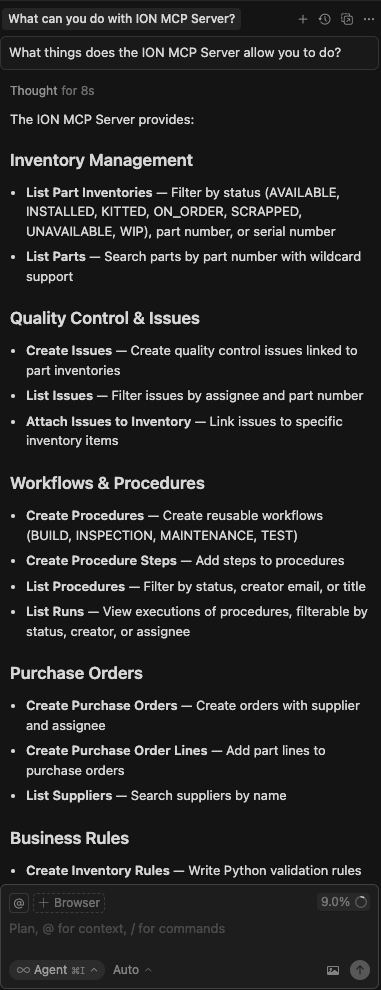
5. Ask Cursor for a list of things it can do in ION. This confirms the connection and shows you its capabilities.
You need a Cursor plan to use Cursor.
1. Open Cursor and go to **Cursor Settings**.
2. Click **Tools and MCP > Add an MCP Server**.
3. Enter this configuration. Swap the name and URL for the environment you want. You can add more than one:
```json theme={null}
{
"mcpServers": {
"ion": {
"url": "https://mcp.staging.buildwithion.com/mcp"
}
}
}
```
4. Turn on **Agent** mode. The chat window starts in **Ask** mode, which doesn't allow MCP servers.
5. Ask Cursor for a list of things it can do in ION. This confirms the connection and shows you its capabilities.