> ## Documentation Index
> Fetch the complete documentation index at: https://docs.firstresonance.io/llms.txt
> Use this file to discover all available pages before exploring further.
# Manage actions
> Create, edit, enable, disable, and delete ION Actions from the Actions page in ION or through the GraphQL API.
An ION Action runs when an event happens in ION, reads the data involved, and can allow the change, block it with a message, or surface a non-blocking warning. You manage actions two ways:
* **Actions page**: a dedicated UI in ION with a built-in code editor for creating and managing actions.
* **GraphQL API**: direct rule creation, update, and deletion for programmatic deployment.
## Common patterns
These are the high-value validation rules most customers set up first:
* **Required fields on creation**: a quality issue must have a defect type and a major subsystem before it can be saved.
* **Block a status transition**: an issue can't move to **In Review** until it has an assignee.
* **Approval gate**: a procedure can't be released without the required approval.
* **Block run closure** if the aBOM is incomplete.
See the [example actions](/automate-with-ion/ion-actions/example-actions) for working configurations.
## Before you start
Actions must be enabled at the organization level before any action can fire. Confirm the setting in the built-in GraphiQL editor:
1. In ION, select **GraphQL** in the sidebar to open the GraphiQL editor.
2. Run this query to check the current setting:
```graphql theme={null}
{
me {
organization {
id
_etag
settings {
rules {
enabled
}
}
}
}
}
```
3. If `enabled` is `false`, an admin can turn it on with the `updateOrganization` mutation. See the [API reference](/api-reference) for the full mutation shape.
## Action fields
An action is defined by these parts. Title, target, and event are form fields; context and code are tabs in the built-in editor.
* **Title**: identifies the action and appears in its toast notification and the audit log.
* **Target**: the object to watch, such as **Run**, **Issue**, or **Procedure**, chosen from a dropdown.
* **Event** (labeled **Event Type** in the editor): when the action runs against the target: **Create**, **Update**, or **Delete**.
* **Context**: a GraphQL query for the data your code needs, such as the target's fields, related records, and user roles. Your code reads from this data.
* **Code**: a Python script that runs when the event fires. It reads the context and decides the outcome: raise `ValidationError` to block the change with a message, raise `ValidationWarning` to warn without blocking, or do neither to allow it. The code is read-only; it can't write data or call external systems.
A validation action blocks by design: when the code raises `ValidationError`, the change is rejected with the message you set. Use this for required-field and approval-gate actions. To surface a message without blocking, see [Create a warning action](#create-a-warning-action) below.
### More on context
Alongside the target's data, the context also provides `currentUser` (the acting user's `email`, `roles`, and `teams`) and a `changes` object describing what the event modified. It's keyed by the camel-cased table name, then by field, and each entry holds `{ "new": ..., "old": ... }`, with the old value `null` on a create and the new value `null` on a delete. Field names are snake-cased, and attribute tables are keyed by the attribute's name.
A `changes` object for a procedure update can look like this:
```json theme={null}
{
"procedures": {
"status": { "new": "released", "old": "in_review" }
}
}
```
Other targets produce different keys, one per table the event touched. A few examples:
```json theme={null}
{
"issues": {
"status": { "new": "in_progress", "old": "pending" },
"must_close_by_run_step_id": { "new": 2116, "old": null }
},
"issuesAttributes": {
"Issue Origin": { "new": "Engineering", "old": null }
},
"issueApprovalRequests": {
"status": { "new": "approved", "old": "pending" }
}
}
```
```json theme={null}
{
"partsInventory": {
"status": { "new": "unavailable", "old": "available" },
"lot_number": { "new": "Lot Test 123", "old": null },
"location_id": { "new": 19, "old": 67 }
}
}
```
```json theme={null}
{
"partsKits": {
"assigned_team_id": { "new": 2, "old": null },
"delivery_location_id": { "new": 19, "old": null }
},
"partKitAttributes": {
"Date Kitted": { "new": "2025-09-08T07:00:00", "old": null }
}
}
```
Use `changes` to branch on what actually changed rather than the final state. For example, to act only when a procedure's status changes to released, rather than on every procedure update:
```python theme={null}
procedure_changes = context.get('changes', {}).get('procedures', {})
if procedure_changes.get('status', {}).get('new') == 'released':
# the procedure was just released; run your logic here
```
Read context defensively. A chained lookup like `context.get('part', {}).get('attributes', {})` throws if `part` exists but is `None`, so read one level at a time with a fallback, such as `part = context.get('part') or {}`.
When several actions share a target and event, they run in sequence in an order you don't control and share one merged context, so keep each action self-contained.
When two actions on the same target and event filter the same field differently in their context (for example, both query `Attributes(filters: {...})` with different keys), the merged query fails. Give each filtered field an alias, such as `deptAttr: Attributes(filters: {key: {eq: "Department"}})`, and reference the alias in your code.
## Create an action
1. In ION, open **Actions**.
2. Select **Create Action**.
3. Set the **title**, **target**, and **event**.
4. In the **context**, query the data your action needs, then write the **code** in the built-in editor. See [the fields above](#action-fields) for what each one does.
5. Save the action.
To create an action programmatically, use the `createRule` mutation. See the [API reference](/api-reference) for the mutation shape, and the [Examples](/automate-with-ion/ion-actions/example-actions) for working action configurations.
ION Actions can block changes in production. Test a new action in your [sandbox](/api-reference/sandbox) before promoting it. For repeatable deployment, author through GraphQL and keep the action definition in your platform repo so you can re-deploy it from CI.
## Create a warning action
A warning action is the non-blocking version of a validation action: the change still saves, a warning message is shown alongside the result, and the warning is recorded in the execution logs. Use a validation action for hard requirements, such as a missing required field or an approval gate, and a warning action for soft ones, such as a skipped recommended step or an out-of-range but allowed value.
To make an action warn instead of block, raise `ValidationWarning` instead of `ValidationError`. Keep `ruleType: VALIDATION`; the exception type drives the behavior.
An action can raise either `ValidationError` or `ValidationWarning`, never both. If you need both for the same event, write two separate actions.
```python theme={null}
if context.get('runStep', {}).get('status') == 'COMPLETE' and any(
issue.get('status') != 'RESOLVED'
for issue in context.get('runStep', {}).get('issues', [])
):
raise ValidationWarning("This Run Step was completed while it still has open issues. Confirm the issues don't need to be resolved first.")
```
The run step still completes, and the operator sees the warning. Warnings return in the GraphQL response under `extensions.warnings` and appear as a non-blocking toast.
If a warning action and a validation action both fire in the same transaction, the error wins and the warning isn't shown, though it's still written to the execution logs.
![Orange warning toast in the bottom-left of the New ION interface reading: 'Warning — [Rule 93] Warn when a Run Step is completed with open issues. This Run Step was completed while it still has open issues. Confirm the issues don't need to be resolved first.'](https://mintcdn.com/firstresonance/3YHPQuEzl4qOwG1I/images/ion-actions/warning-actions-toast-new-ion.png?fit=max&auto=format&n=3YHPQuEzl4qOwG1I&q=85&s=8d57d9b386ca03cebacb6112f009de4f) Only one warning surfaces per change. If several warning actions fire for the same change, only the first appears; the next shows after the operator fixes it and resubmits.
## Edit an action
1. In ION, open **Actions**.
2. Select the action to open its detail page.
3. Update the **title**, **target**, **context**, or **code**. The title appears in the action's error and toast messages, so keep it meaningful.
4. Select **Save**.
To edit an action programmatically, use the `updateRule` mutation. See the [API reference](/api-reference) for the mutation shape.
Editing a live action changes its behavior right away. Test your changes in your [sandbox](/api-reference/sandbox) before editing a production action.
## Enable or disable an action
In the Actions list, select one or more actions with the checkboxes, then enable or disable them. A disabled action isn't evaluated, which lets you stage an action before turning it on in production.
## Share an action across environments
To copy an action to another environment, open it and select **Share**. ION generates the action's `createRule` mutation; copy it and run it in the target environment's GraphiQL editor to recreate the action there.
## Delete an action
1. In ION, open **Actions**.
2. Find the action you want to remove.
3. Delete it and confirm. To remove several at once, select them with the checkboxes and delete them together.
To delete an action programmatically, use the `deleteRule` mutation. See the [API reference](/api-reference) for the mutation shape.
Deleting an action is permanent. If you only want to stop it from running, [disable it instead](#enable-or-disable-an-action).
## How the code is structured
When an event and target combination matches several actions, those actions are squashed together at run time. Squashing merges both the code and the requested context so every triggered action runs with the data it needs.
For example, two actions are both configured with event `CREATE` and target `RUNS`:
Only one warning surfaces per change. If several warning actions fire for the same change, only the first appears; the next shows after the operator fixes it and resubmits.
## Edit an action
1. In ION, open **Actions**.
2. Select the action to open its detail page.
3. Update the **title**, **target**, **context**, or **code**. The title appears in the action's error and toast messages, so keep it meaningful.
4. Select **Save**.
To edit an action programmatically, use the `updateRule` mutation. See the [API reference](/api-reference) for the mutation shape.
Editing a live action changes its behavior right away. Test your changes in your [sandbox](/api-reference/sandbox) before editing a production action.
## Enable or disable an action
In the Actions list, select one or more actions with the checkboxes, then enable or disable them. A disabled action isn't evaluated, which lets you stage an action before turning it on in production.
## Share an action across environments
To copy an action to another environment, open it and select **Share**. ION generates the action's `createRule` mutation; copy it and run it in the target environment's GraphiQL editor to recreate the action there.
## Delete an action
1. In ION, open **Actions**.
2. Find the action you want to remove.
3. Delete it and confirm. To remove several at once, select them with the checkboxes and delete them together.
To delete an action programmatically, use the `deleteRule` mutation. See the [API reference](/api-reference) for the mutation shape.
Deleting an action is permanent. If you only want to stop it from running, [disable it instead](#enable-or-disable-an-action).
## How the code is structured
When an event and target combination matches several actions, those actions are squashed together at run time. Squashing merges both the code and the requested context so every triggered action runs with the data it needs.
For example, two actions are both configured with event `CREATE` and target `RUNS`:
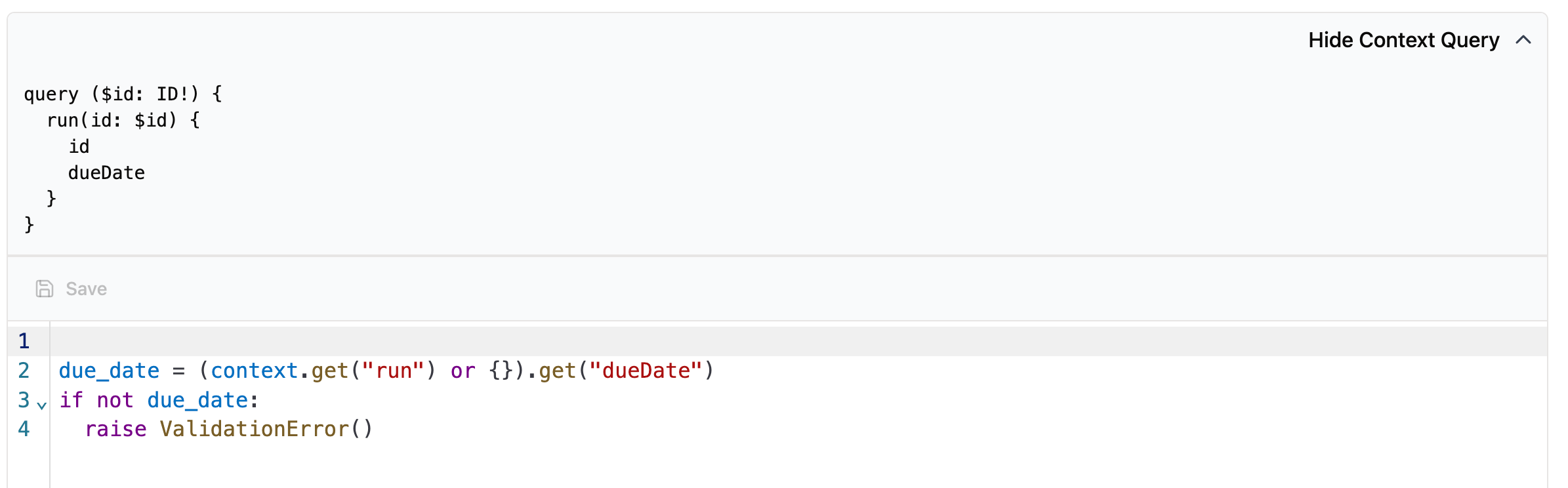
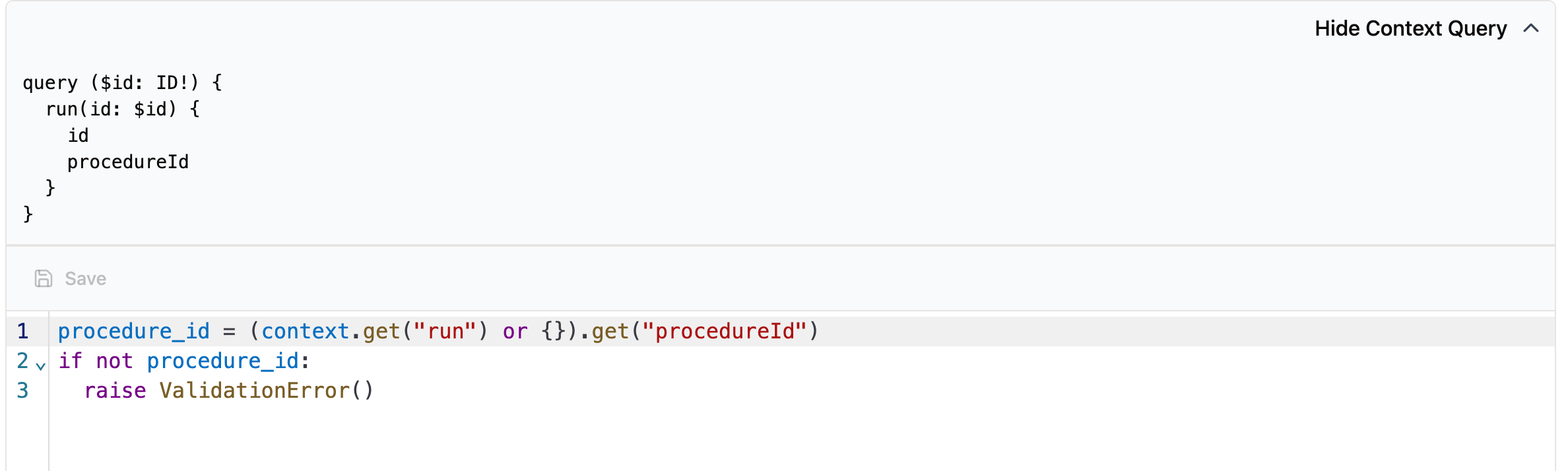 When a run is created, both actions trigger and are squashed into a single execution flow, shown in the execution log:
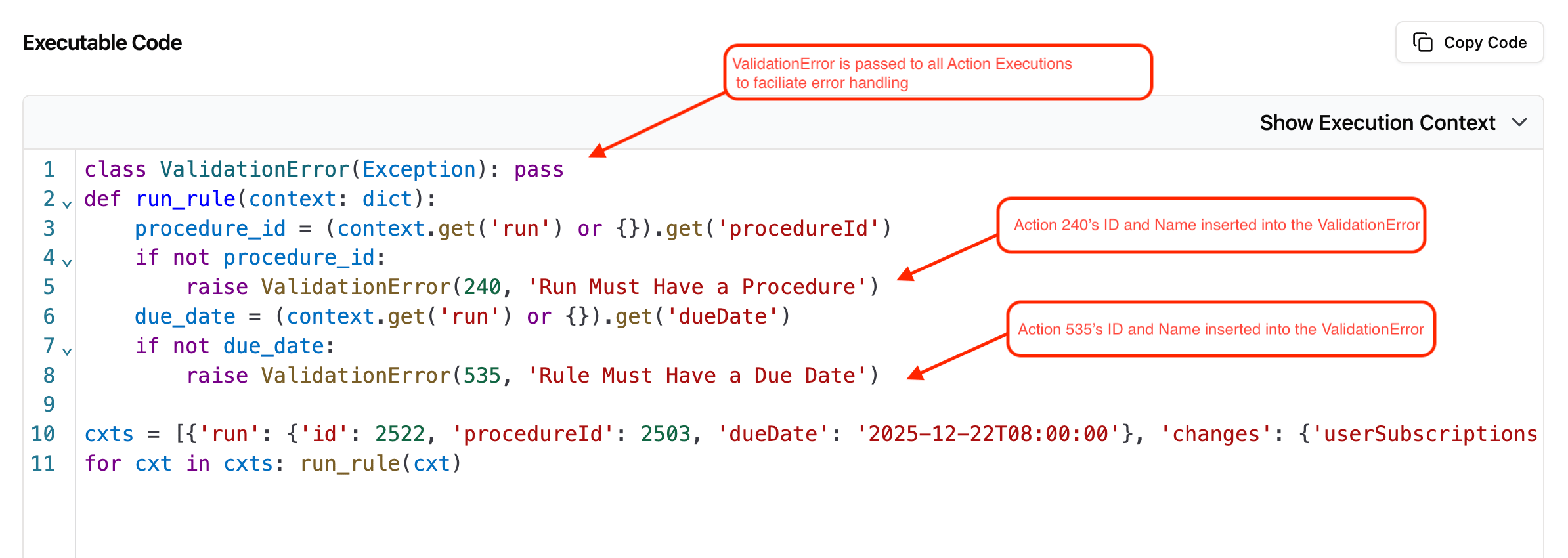 The squashed code includes a few standard pieces:
* **`ValidationError`**: a class defined in every execution log. If an action raises it, the action's ID and name are injected into the code so it's clear which action caused the failure.
* **`run_rule`**: wraps each triggered action into one executable unit and runs them in sequence, with validation actions before warning actions so a block takes precedence.
* **`ctx`**: the combined context for all squashed actions. Each action declares the fields it needs, and squashing merges them into one context object.
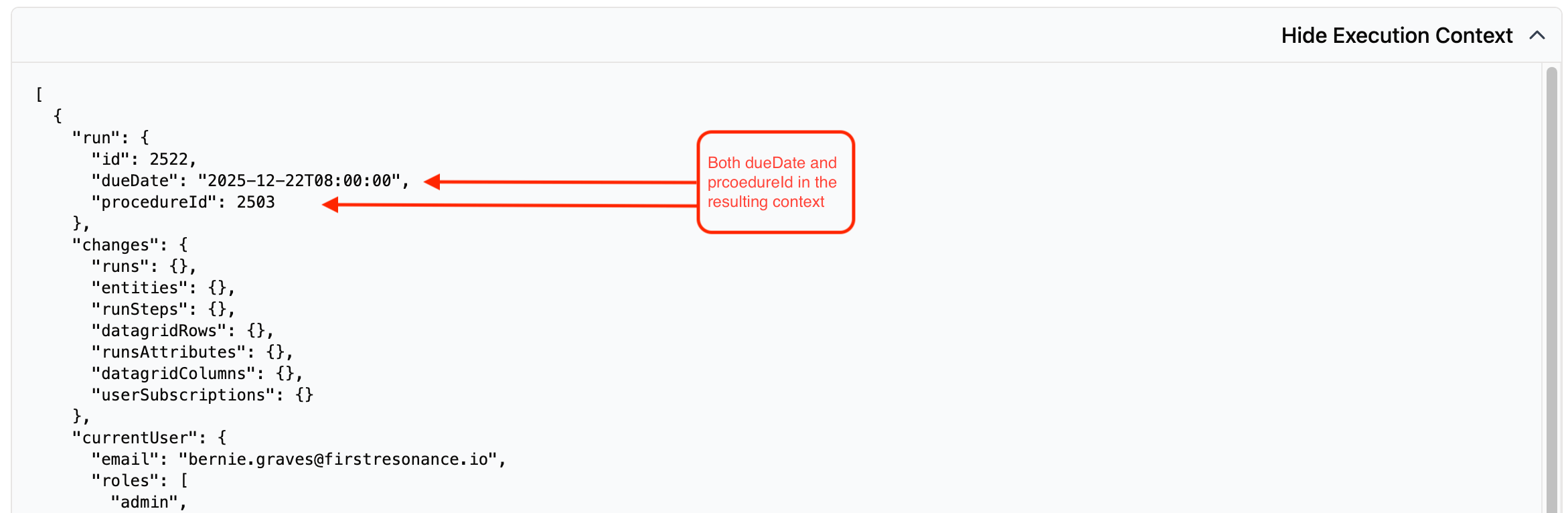
In the example, action 535 requests `dueDate` and action 240 requests `procedureId`, so the resulting context contains both:
The squashed code includes a few standard pieces:
* **`ValidationError`**: a class defined in every execution log. If an action raises it, the action's ID and name are injected into the code so it's clear which action caused the failure.
* **`run_rule`**: wraps each triggered action into one executable unit and runs them in sequence, with validation actions before warning actions so a block takes precedence.
* **`ctx`**: the combined context for all squashed actions. Each action declares the fields it needs, and squashing merges them into one context object.
In the example, action 535 requests `dueDate` and action 240 requests `procedureId`, so the resulting context contains both:
 ## Related
* [View action execution logs](/automate-with-ion/ion-actions/view-action-execution-logs) to inspect and debug an action run
* [Example actions](/automate-with-ion/ion-actions/example-actions) for working action configurations
## Related
* [View action execution logs](/automate-with-ion/ion-actions/view-action-execution-logs) to inspect and debug an action run
* [Example actions](/automate-with-ion/ion-actions/example-actions) for working action configurations