> ## Documentation Index
> Fetch the complete documentation index at: https://docs.firstresonance.io/llms.txt
> Use this file to discover all available pages before exploring further.
# Create a purchase order
> Place an order with a supplier in ION, add lines and parts, and reuse common orders with templates.
## Create a purchase order
1. In ION, go to the **Purchases** page.
2. Click **Create Purchase Order**. ION creates the purchase order and opens its detail page.
3. Set the supplier on the purchase order using the **Supplier** field.
4. Add lines to the order. For each line, set the part, quantity, cost, and any other details for the purchase.
5. Optional: set a quality clause or term requirement on a line so the supplier delivers against it. See [Manage requirements](/administration/supply-chain-settings/manage-requirements).
To buy a good or service you don't track in inventory, leave the **Part** field empty on the line, or pick a part whose purchase type doesn't create inventory. See [Purchase types](/manage-supply-chain/purchasing/overview#purchase-types).
You can print a draft PO at any time. The draft watermark is removed once the PO moves past the ordered state.
## Set an external reference
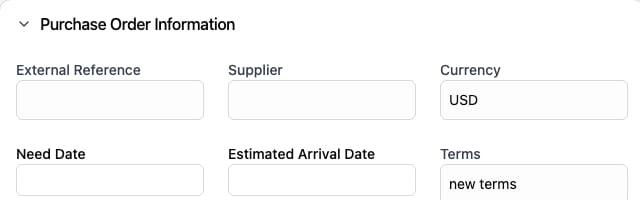
Set the **External Reference** field in the purchase order's **Purchase Order Information** section to link the PO to an identifier from another system, such as an ERP PO number.
 ## Reuse an order with a template
Use the external reference to create purchase templates for common orders, then copy a template to start a new purchase instead of building it line by line. For a walkthrough, see this [video on purchase templates](https://www.loom.com/share/6d20821c431e42aaa2e13387807c0e94?sid=bac5b73f-b3d5-4dcf-a9ec-7246f6dafd04).
## Related
* [Purchase order statuses](/manage-supply-chain/purchasing/overview#statuses)
* [Approve purchase orders](/manage-supply-chain/purchasing/approve-purchase-orders)
* [Receive parts](/manage-supply-chain/receiving/receive-parts)
## Reuse an order with a template
Use the external reference to create purchase templates for common orders, then copy a template to start a new purchase instead of building it line by line. For a walkthrough, see this [video on purchase templates](https://www.loom.com/share/6d20821c431e42aaa2e13387807c0e94?sid=bac5b73f-b3d5-4dcf-a9ec-7246f6dafd04).
## Related
* [Purchase order statuses](/manage-supply-chain/purchasing/overview#statuses)
* [Approve purchase orders](/manage-supply-chain/purchasing/approve-purchase-orders)
* [Receive parts](/manage-supply-chain/receiving/receive-parts)