> ## Documentation Index
> Fetch the complete documentation index at: https://docs.firstresonance.io/llms.txt
> Use this file to discover all available pages before exploring further.
# Associate inventory to an issue
> Link the inventory an issue affects and the inventory used to resolve it, for full traceability.
You manage both the affected inventory and the resolution inventory on the issue's **Parts** tab.
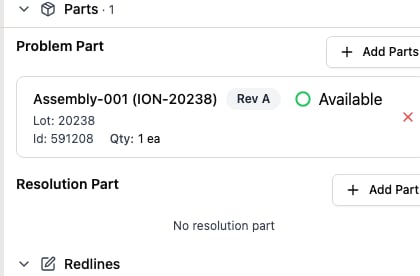 ## Add the affected inventory
1. On the **Issues** page, open the issue.
2. Open the **Parts** tab.
3. Under **Problem Part**, click **Add Parts** and choose the affected part inventory.
4. Repeat for each additional affected part.
## Set the resolution inventory
1. On the issue's **Parts** tab, under **Resolution Part**, click **Add Part**.
2. Choose the part inventory used to resolve the issue.
## Related
* [Create an issue](/track-quality/issues/create-an-issue)
* [Issue states, dispositions, and resolutions](/track-quality/issues/overview)
## Add the affected inventory
1. On the **Issues** page, open the issue.
2. Open the **Parts** tab.
3. Under **Problem Part**, click **Add Parts** and choose the affected part inventory.
4. Repeat for each additional affected part.
## Set the resolution inventory
1. On the issue's **Parts** tab, under **Resolution Part**, click **Add Part**.
2. Choose the part inventory used to resolve the issue.
## Related
* [Create an issue](/track-quality/issues/create-an-issue)
* [Issue states, dispositions, and resolutions](/track-quality/issues/overview)