> ## Documentation Index
> Fetch the complete documentation index at: https://docs.firstresonance.io/llms.txt
> Use this file to discover all available pages before exploring further.
# Create an issue
> Raise a quality issue in ION, attach the affected parts, runs, and run steps, and route it to the right person.
## Start creating an issue
You can start an issue from several places in ION. Use the one that fits where you are:
* Press **Cmd+Shift+I** (Mac) or **Ctrl+Shift+I** (Windows) from any page.
* On the **Issues** page, click **New Issue**.
* On a run step, click **Create Issue** to attach that run and step automatically.
* Select one or more rows in an inventory, receipt, or purchase order table, press **Cmd+K** to open the command palette, and choose **Create Issue** to attach the selected parts.
Starting from the record where you found the problem prefills its context, which saves time: from a run step, the run and step are attached; from selected inventory, receipts, or purchase orders, the selected parts are added to **Related Parts**.
## Fill in the issue details
Fill in the fields you need. **Title** is the only field that's always required; others can become required from what you enter, such as a **Run Step** once you pick a **Run**.
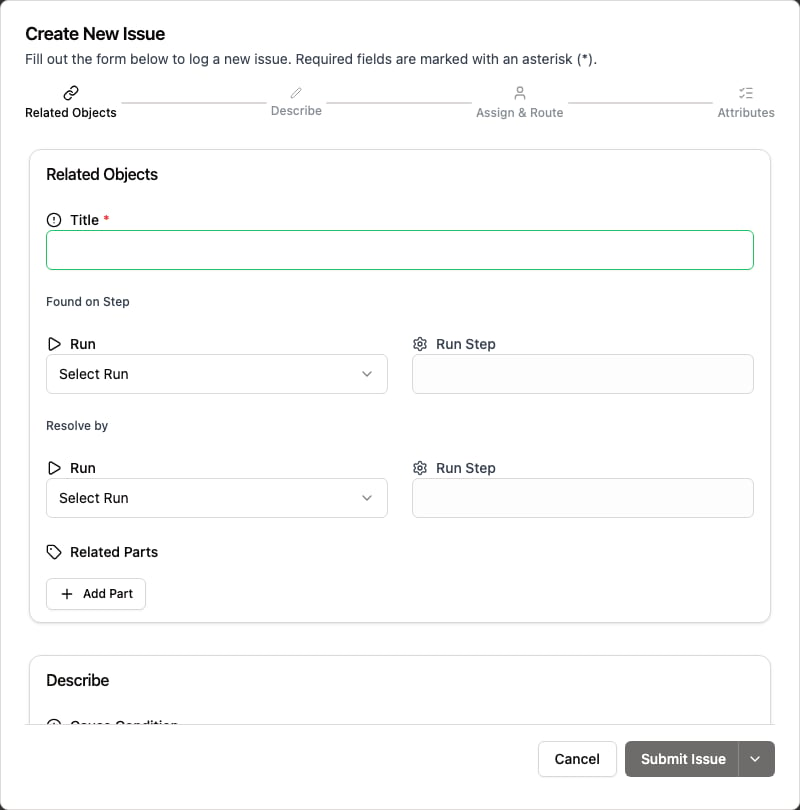 1. Enter a **Title**.
2. Optional: under **Found on Step**, select the **Run** and **Run Step** where the problem appeared. Selecting a run requires selecting its step.
3. Optional: under **Resolve by**, select the **Run** and **Run Step** that must be completed to resolve the issue.
4. Optional: add the affected inventory under **Related Parts**. For a part tracked by quantity, enter the number of affected units.
5. Optional: describe the problem in **Cause Condition** and what the result should have been in **Expected Condition**.
6. Optional: attach photos, measurements, or documents under **Attachments**.
7. Optional: set **Move to Location** to send the affected inventory to a location such as a quarantine area, and **Assign to** to assign the issue to a user or team.
8. Set any custom **Additional Attributes** your organization configures. Some can be required before you can submit.
9. Click **Submit Issue**. To raise another issue right away, click **Submit & Create New** instead.
Your organization can rename **Cause Condition**, **Expected Condition**, and **Disposition**, so the labels you see may differ. See [Rename fields](/administration/quality-settings/rename-fields).
## Related
* [Issue states, dispositions, and resolutions](/track-quality/issues/overview)
* [Split or clone an issue](/track-quality/issues/split-or-clone-an-issue)
* [Configure issue creation and approvals](/administration/quality-settings/configure-issue-creation-and-approvals)
1. Enter a **Title**.
2. Optional: under **Found on Step**, select the **Run** and **Run Step** where the problem appeared. Selecting a run requires selecting its step.
3. Optional: under **Resolve by**, select the **Run** and **Run Step** that must be completed to resolve the issue.
4. Optional: add the affected inventory under **Related Parts**. For a part tracked by quantity, enter the number of affected units.
5. Optional: describe the problem in **Cause Condition** and what the result should have been in **Expected Condition**.
6. Optional: attach photos, measurements, or documents under **Attachments**.
7. Optional: set **Move to Location** to send the affected inventory to a location such as a quarantine area, and **Assign to** to assign the issue to a user or team.
8. Set any custom **Additional Attributes** your organization configures. Some can be required before you can submit.
9. Click **Submit Issue**. To raise another issue right away, click **Submit & Create New** instead.
Your organization can rename **Cause Condition**, **Expected Condition**, and **Disposition**, so the labels you see may differ. See [Rename fields](/administration/quality-settings/rename-fields).
## Related
* [Issue states, dispositions, and resolutions](/track-quality/issues/overview)
* [Split or clone an issue](/track-quality/issues/split-or-clone-an-issue)
* [Configure issue creation and approvals](/administration/quality-settings/configure-issue-creation-and-approvals)