How imports work
To start an import, navigate to Imports in the sidebar, then pick an import type from the New Import tab. Imports are processed asynchronously, so you can navigate away and continue working while the import runs. You receive a notification when the import completes or fails. Clicking Start Import on any card opens the import wizard, which walks you through Upload, Match, and Review steps. On the Upload step you can download the CSV template, toggle the importer’s options (the option set varies by importer), or choose Enter data manually to type rows into the grid instead of uploading a file. The editable preview covers files up to 5,000 rows. Upload a larger file and ION says so, skips the Match and Review steps, and offers Import file as-is, which sends the file unedited. A file above 1,000,000 rows is rejected outright. The Match step maps your file’s columns to ION fields. ION auto-maps each column to the field whose name it matches, and you can adjust any mapping in that column’s Maps To dropdown: pick a different field, keep the column as a custom attribute, or skip the column so it isn’t imported. Required fields must stay mapped. When you enter data manually instead of uploading, this step becomes a column picker where you choose which fields to include. On the Review step, ION shows your rows in an editable grid. Edit any cell inline, then use the validate control to check the data. ION flags each failing cell with its error and highlights the affected rows, so you can fix them and revalidate before importing. Editing a validated file prompts you to revalidate before you can import.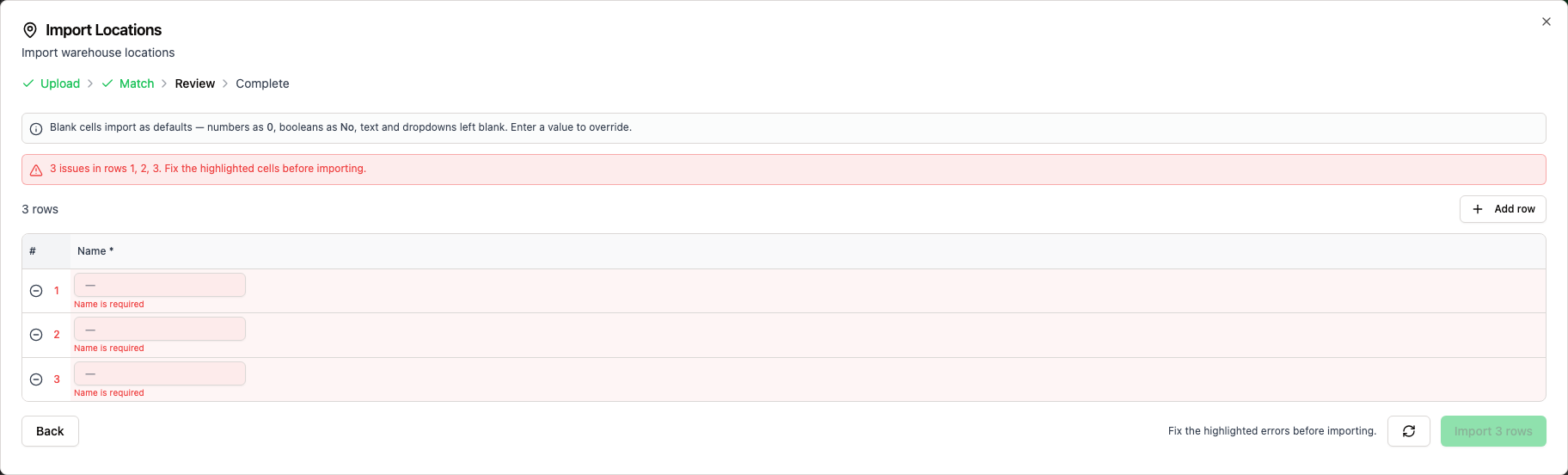
The Review step flags each failing cell so you can fix it before importing.
Video walkthrough
This walkthrough uses the mBOM importer as an example.Required and optional columns
Each import type has its own set of columns. Some columns are required and must be present in every row, while others are optional. Optional columns that you omit from your CSV are skipped entirely, so ION does not touch those fields on the imported records. Only when an optional column is included in the CSV but left blank for a given row does ION apply a default value based on the field type (see below). If a required column is missing or empty, the import fails with a validation error.How empty CSV cells are handled
When an optional column is present in your CSV but a row leaves it blank, the cell defaults to a falsy or zero-equivalent value (not null). Omitting the column entirely leaves the field untouched.Lookup and control columns are exempt
A handful of columns are exempt from the falsy-default rule, either because they’re used to look up an existing record or control importer behavior, or because0 isn’t a falsy value for that field’s type. For these, an empty cell means “not provided”:
Each importer’s column table calls out which fields behave this way.
To set a field to true, you must explicitly write a truthy value.
Accepted boolean values
Boolean fields accept any of the following (case-insensitive):Errors
When validation fails, ION reports up to 5,000 errors with the specific row number and a description of the problem. Row numbers correspond to the CSV file where row 1 is the header and row 2 is the first data row.If your file contains more than 5,000 errors, ION stops scanning at that point. Fix the reported batch and re-upload to see the rest.