Add, test, and check each step
Repeat these steps for every step you add to the flow:- In Workflow Builder, click + under the last step, search for a component, such as ion-api or Branch, and select an action.
- Configure the step’s fields. Reference values from earlier steps instead of typing them in, as described in Reference a value from an earlier step.
- Run the flow with your saved payload, as described in Run the flow with a saved payload.
- In Run history, click the new step and check its Output. If a value is missing or wrong, fix the step and run the flow again before you add the next step.
results.body.data.data in the trigger’s output, such as the received item of a Receipt Items - Create event. Confirm it holds the value the next step needs, such as a part_inventory_id.
Reference a value from an earlier step
- In the step’s Configure tab, click the arrow icon at the right end of the field to open the Reference panel.
- In Step, select the earlier step whose output you want, such as Trigger.
- Expand the output tree and click the value. Path fills in with its location, such as
results.body.data.data.
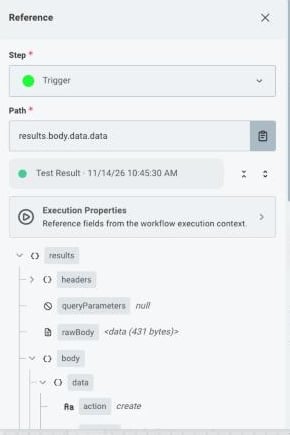
The Reference panel with the trigger selected and the test run's output tree expanded.
Pass variables to Run GraphQL Query
The GraphQL Variables field of Run GraphQL Query takes one reference to an object. The object’s keys must match the variables the query declares. For example, a query that declares$part_inventory_id can reference the trigger’s results.body.data.data object, which has a part_inventory_id key.
ION rejects variables that aren’t an object. To send a single value, such as an ID, reference the object that contains it.
Branch on a condition
Use the Branch component to send a run down different paths.- In Workflow Builder, click + under the step the branch follows, search for Branch, and select an action:
- If Condition is Met chooses the next step based on one or more conditions.
- If Value Equals chooses the next step based on a value.
- For If Condition is Met, enter a name in Condition, such as “Needs aBOM”. The name labels the condition’s path on the canvas. A run that doesn’t match takes the Else path.
- Set the condition’s first Field, its Operator, and its second Field. Reference a value from an earlier step, or type one in, such as
0. - Optional: To add another check, click Add a condition. Select And to require every condition, or Or to require any one of them.
- Run the flow with your saved payload, and click the branch step in Run history. Its Output names the path the run took.
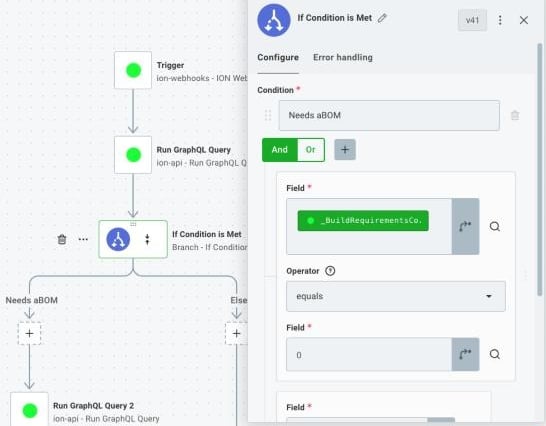
An If Condition is Met branch with a Needs aBOM path and an Else path, and its first condition.