Prerequisites
- A released procedure for the target part.
- For an attach run, an existing part inventory record for the unit (created automatically when the part is staged from receiving, kitting, or a parent run). For a build run, ION creates the inventory on completion.
- Permission to create runs in your organization.
Where to start a run
Each path opens the same run wizard and ends with a run in Todo, ready for an operator to pick up.
The run wizard
The wizard walks top to bottom through five steps: Source, Part, Identify, Details, and Review.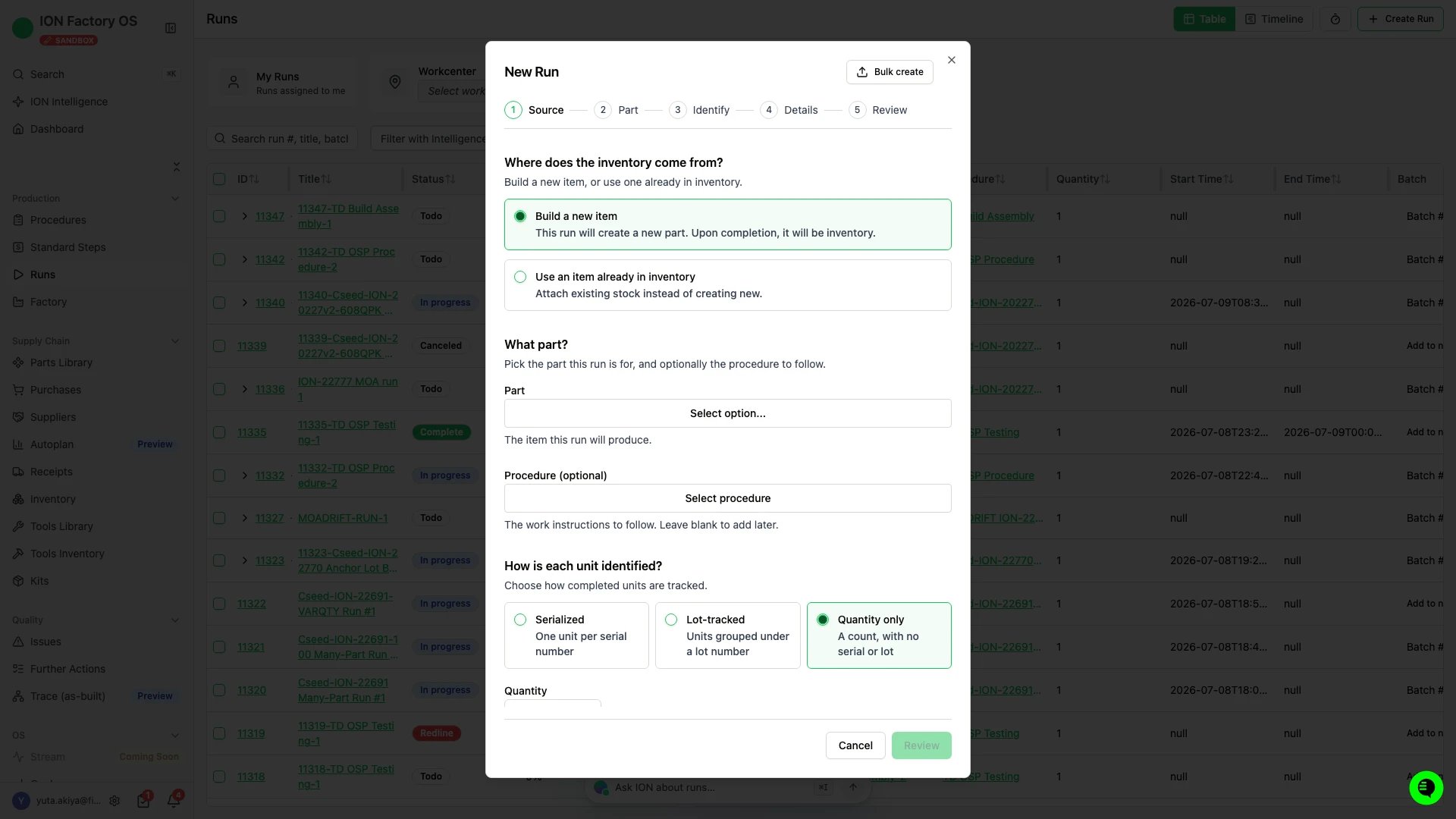
The run wizard on the Source step.
1
Source
Choose where the run’s output inventory comes from:
- Build a new item: ION creates the new part inventory record when you create the run. It stays WIP while the run is open, and becomes Available when the run completes.
- Use an item already in inventory: attach existing stock instead of creating new. This is the path for a kit or sub-assembly already on the floor.
2
Part
Pick the Part this run produces. Optionally pick a Procedure (released procedures only), or leave it blank to add one later. When you open the wizard from a procedure page, the procedure is already selected here.The run’s steps come from the procedure’s steps, in the same order and with the same fields and validations.When the Require part-procedure relationship setting is on, the selected part and procedure must have an approved association. If they don’t, this step shows the message “The selected part must be associated with and approved for the selected procedure,” and you can’t advance to Review. See Link a part to a procedure.
3
Identify
In Build a new item mode, choose how completed units are tracked:
- Serialized: one unit per serial number.
- Lot-tracked: units grouped under a lot number, with a quantity.
- Quantity only: a count, with no serial or lot.
4
Details
Name the run and set who’s responsible:
- Run name: enter a name, or check Auto-generated. The auto-generated name encodes the run and target part. Enter your own if your org tracks builds by a different identifier, such as a customer PO, lot, or build number.
- Due date (optional).
- Export controlled toggle.
- Assigned to (optional): a user or team. Assigning the run makes it show up on their work view. Leave it unassigned to let anyone pick it up. Depending on your settings, this field is pre-filled with you and an unassigned run lands on its creator. See Auto-assign runs to their creator.
- Any organization-defined custom attributes.
5
Review
Each run you’ve authored appears as a row. Click Edit details on a run to reopen the wizard and change its details. You can also set a number of Copies and Duplicate it, or remove it. Use Add another run to author more in the same session. To batch the runs together, check Batch runs and name the batch. If another batch already uses that name, the field warns that the runs will be added to the existing batch, and creating opens a merge confirmation first. Steps in batched runs share sign-offs and redlines. For more information, see Manage run batches. You can also add a run to a batch later.Click Create run (or Create N runs / Create batched run) to create everything in the list.
Troubleshooting
No procedures available for this part
No procedures available for this part
The part has no procedures associated. Either link the procedure to the part, or open the wizard from the procedure page so the procedure is pre-filled. See Link a part to a procedure.
The selected part must be associated with and approved for the selected procedure
The selected part must be associated with and approved for the selected procedure
The Require part-procedure relationship setting is on, and the part and procedure have no approved association. A missing, Pending, or Rejected association all block the run. Approve the association on the part’s Procedures section, then continue. See Link a part to a procedure.
Part inventory is not in a state that allows a new run
Part inventory is not in a state that allows a new run
When you attach an existing inventory item, the unit is Consumed, Installed, or Scrapped. You can’t start a run on inventory that’s already been used. Check the inventory’s state on the inventory page.
Cannot attach inventory built against a different mBOM version
Cannot attach inventory built against a different mBOM version
You attached an existing inventory item whose aBOM came from a different mBOM version than the one the procedure pins, and the item already has installs recorded. ION won’t rebuild an aBOM that has installs, so it refuses the run and names the versions involved. Attach a different inventory item, or choose Build a new item.When the item has no installs yet, ION rebuilds its aBOM from the pinned version instead and creates the run. This applies only while your org has Enable mBOM version selection on and the procedure pins a version for the part.
Procedure has unreleased steps
Procedure has unreleased steps
The procedure isn’t Released, or some of its steps aren’t approved. Release the procedure first, then start the run.