Check into a run step
On a Todo run step, click Start / Check In to move it to In Progress and begin capturing your labor time. Starting the run step also moves the WIP assembly, and any inventory installed on it, to the run step’s location. While it’s in progress, Check In and Check Out let you start and stop your own session. Completing, holding, failing, or redlining it checks you out. For how check-in and check-out sessions are recorded and edited, see Time tracking. This location move is on by default. To keep inventory where it is when a step starts, turn on Disable auto location update on run start. See Disable auto location update.Fill in fields
Each run step can have any number of fields defined on the procedure. For each field type, see Step field types. Fields can be marked required. ION blocks run step completion if any required field is empty.Measurements and validation
When a numeric field has a validation (target, min, or max), ION evaluates your input as soon as you save the field:- In range: you can complete the run step.
- Out of range: completion is blocked unless the run step’s policy allows out-of-range values with an issue attached.
Build requirements (parts to install)
If the run step has build requirements, the parts to install onto the parent assembly during this run step, they list on the Part installs tab in the run’s right rail. A requirement’s Installed count sums the installed quantity across every recorded install, not the number of installs. A requirement whose quantity is 0 is an as-required part, such as adhesive or a shim. It reads As required in place of a required count. A 0-quantity requirement never blocks completing the run step or the run, and its install control stays available after it reads complete. You install a part by scanning its part inventory serial or lot, or by selecting from a picker. Your organization can require a barcode scan for installs. For more information, see Require barcode scanning for installations. ION does the following:- Validates that the scanned unit matches the required part or an approved substitute.
- Confirms the part inventory is installable. A scan is accepted when the status is Available, Kitted, or Safety reviewed, and Kitted stock only when it is kitted to this run.
- Records the install and links the part inventory to the parent’s aBOM.
- Moves the installed inventory to the assembly’s location. Afterward, moving the assembly moves all installed inventory with it, through the full depth of the aBOM.
- Counts down the requirement’s remaining quantity.
Edit a run step’s build requirements
Depending on your settings, the Part installs section becomes editable while the run step is in Redline, so a change to what the step installs is captured as a redline like any other run step change. Putting the step into redline and taking it out is done from the run step’s own actions, not from this section. For more information, see Redlines and deviations. While the step is in redline, you can:- Change a requirement’s quantity for this step, in place on the requirement.
- Remove a requirement from the step, which leaves the part on the aBOM.
-
Add a part with the add-part control (+) in the section header. The picker separates the two outcomes into groups, and one search box narrows both:
- On this assembly lists the assembly’s existing build requirements that this run step doesn’t already carry. Picking one only maps it to the run step.
- All other parts carries the note Adding one also adds it to the assembly’s requirements. Picking one creates the build requirement on the aBOM first, then maps it to the run step.
- Add a substitute that applies to this step only, from the Substitutes section header.
Sign-off fields
Approval gates are configured on the procedure as sign-off fields, an extra check before the run step can be completed. Common patterns:- Quality Engineer sign-off on critical inspection steps.
- Witness sign-off on irreversible operations, such as fastener torque, sealing, and lid close.
- Customer sign-off for customer-witnessed builds.
Complete a run step
When fields are filled, build requirements installed, and any sign-off fields approved:- Check in to the run step, then click Complete.
- ION records who completed the run step and when, checks you out, and updates the run step status to Complete.
- The next run step, if any, becomes the active run step for the run.
When required installs block completion
When a build requirement is what’s holding the run step back, the error names each one and what’s unmet:- The part is short on quantity, with how much is required and how much is installed.
- Reference designators have no install, listed by designator.
- Reference designators are installed on only some of the parent units, with the count for each.
- A made-on-assembly sub-assembly isn’t fully installed, with its percentage and which of its children are incomplete.
The percentage the aBOM shows counts quantity only. A requirement whose quantity
is fully installed can still read 100% and block the run step, because one of its
reference designators has no install against it. The error names the designators
in that case.
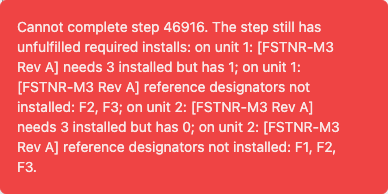
The error shown when required installs block a run step. Each unmet requirement names the unit it belongs to, the part, and what is outstanding.
Fail a run step
When you hit an outcome that can’t be passed, open the run step’s More actions menu and:- Click Fail Step.
- Provide a reason as free text, with an optional issue link.
- The run step transitions to Failed.
- Rework: fix the failure, then open the run step’s More actions menu and click Move to To-Do to work it again. To change the run step before you rework it, click Put Step into Redline instead. Depending on your settings, Move to To-Do requires every issue on the run step to be Resolved first.
- Disposition via issue: open an issue against the run step, capture the disposition (Use As Is, Rework, or Scrap), and let the issue lifecycle drive the next action. See Issue states.
- Fail the run: if the failure can’t be resolved at all, transition the run to Failed.
Attachments
Attach files to a run step, such as images, PDFs, and STEP/STP files, up to 100 MB each. These are separate from any file captured in a File field.- On the run step, open the Attachments section.
- Add a file by dragging it onto the upload area, clicking Browse files, or clicking Take a photo on a device with a camera.