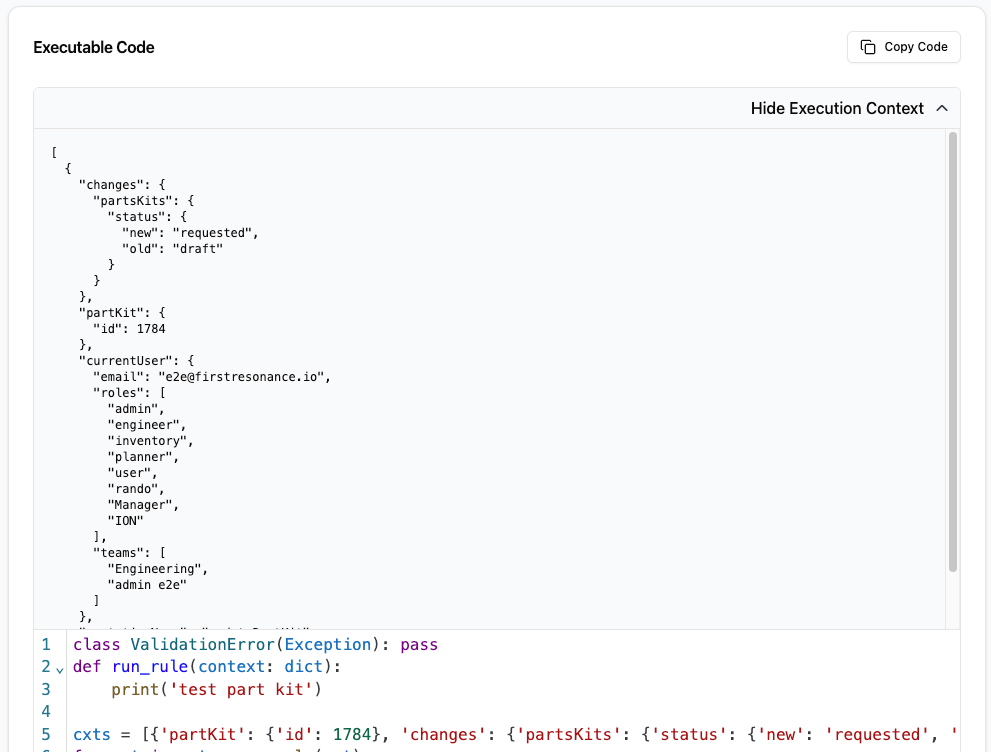
Action execution logs show the exact code and context used during an ION Action run, along with the validation message, the actions that ran, and the target record. Use them to confirm correct behavior and troubleshoot failures while developing an action. Logs are scoped to one event and target combination during a change: when several actions share the same event and target, their execution is grouped into a single log.
Execution logs are kept for 30 days. After that, they are permanently deleted.

Open the logs

You can reach execution logs two ways:
  • From the Actions page: select View Execution Logs in the header to open a table of all execution logs.
  • From a single action: open the action and select the Executions tab, next to Context and Code, to see logs for that action only.

Search and filter

The search bar above the table matches on the action ID, request ID, target record ID, target, and event.
Execution logs table with the search bar above it.
For more options, select Filters. When you apply both filters and a search, results must match all selected filters and the search query.

Table actions

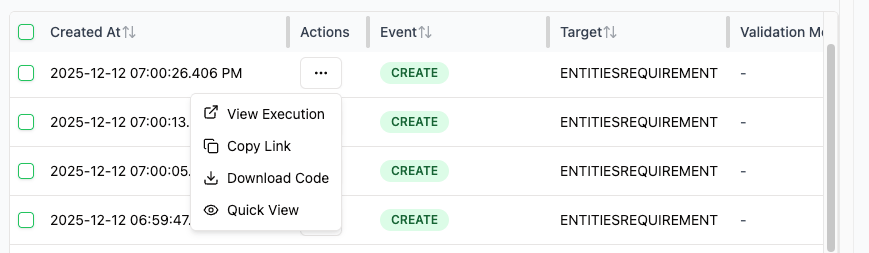
The Actions column on each row gives you quick ways to work with a log:
  • View Execution: open the execution log page.
  • Copy Link: copy a link to the execution log page.
  • Download Code: download the executed code as a Python file.
  • Quick View: open a dialog with a glimpse of the execution code.
Actions column menu showing View Execution, Copy Link, Download Code, and Quick View.
Download code and debug locally

Use Download Code to save the executed code as a Python file. To download several at once, select multiple rows and use the action bar at the bottom to get a Zip with one Python file per log.
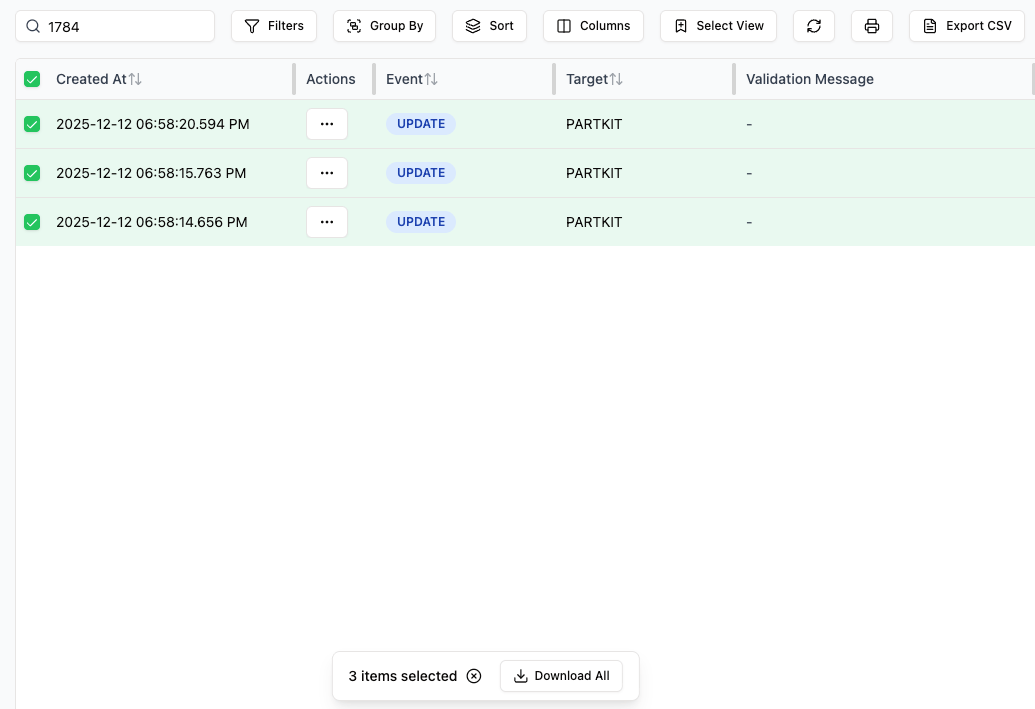
Selected execution log rows with the bottom action bar to download a Zip of Python files.
With Python 3 installed, run python3 name_of_log_file.py in your terminal to reproduce the action’s exact output. Edit the file and run it again until you get the result you want, then move your changes back into the action.

Quick view

Quick View opens a dialog with the executed code, the timestamp, and high-level metadata. Use the arrows, or the left and right arrow keys, to move to the next log. Navigation follows the logs shown in the table.
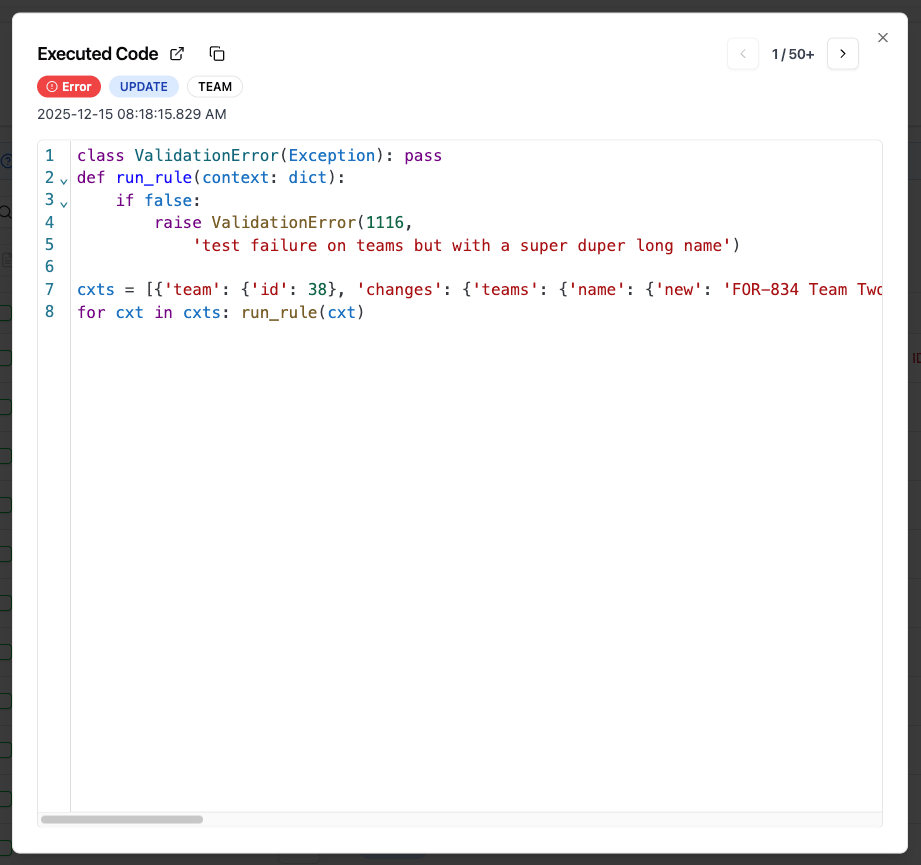
Quick View dialog showing an execution's code, timestamp, and metadata.

The execution log page

Open a log by selecting its timestamp or View Execution. The page shows all metadata along with the code and context that ran.
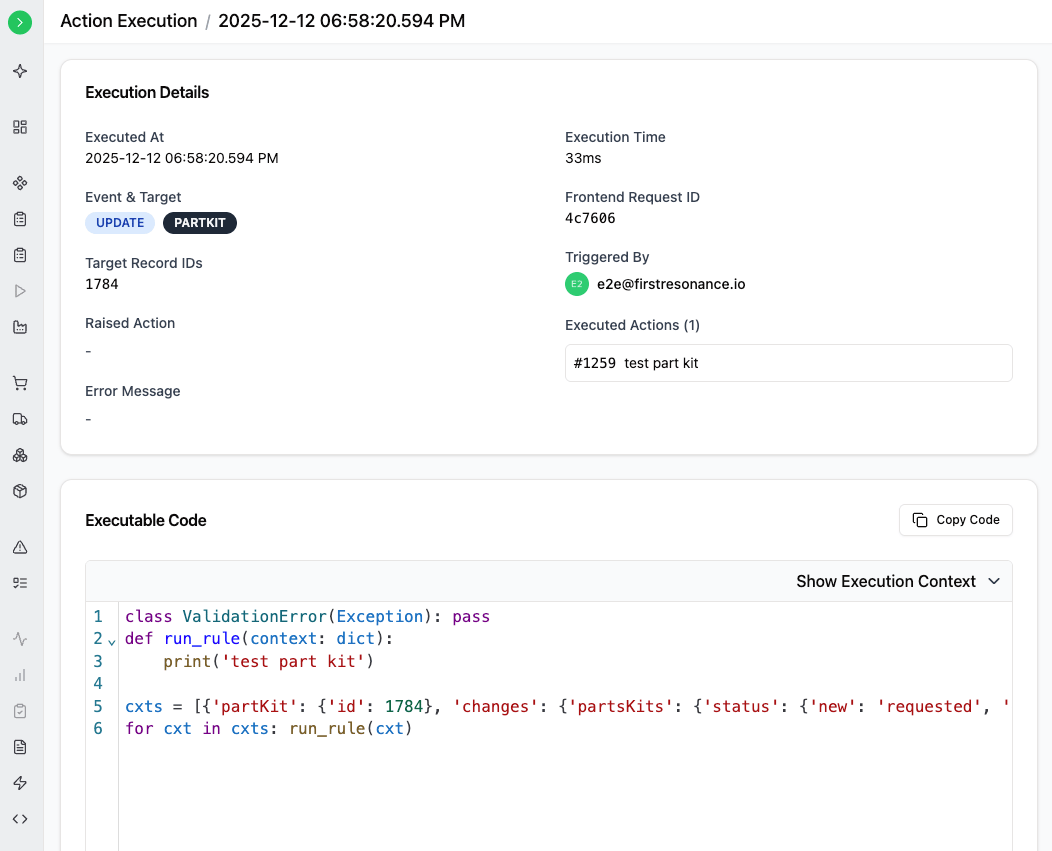
Execution log page showing metadata, the executed code, and the context.
Select Show Execution Context to expand the context as formatted JSON.
Execution log page with the execution context expanded as formatted JSON.

Log fields

Each log contains the code, context, and metadata from the run:
FieldDescription
Created AtWhen the log was created, matching when the action was triggered.
EventThe event that triggered the action.
TargetThe type of record the action ran against, such as Part Inventory or Run Step.
Target Record IDThe ID of the target record. An UPDATE event with target PART and target record ID 34 means the action was triggered by updating part 34.
Validation MessageThe message raised by the action, either the expected validation message or a Python error such as a SyntaxError or NameError that occurred while the action ran.
Raised ActionThe action that raised the validation message.
Executed Action IDsEvery action that ran in the log.
Execution TimeHow long the action took to run, in milliseconds.
ION Request IDThe ID of the request during which the log was created. It also appears on the error toast shown when an action fails.
Triggered ByThe person whose operation triggered the action.