Pick a label template, choose a printer, and print barcode labels over the browser or print-server path.
The Barcode Label dialog lets you pick a barcode template, choose a printer, set the number of copies and the print order, preview the rendered label, and submit the print job. ION prints over one of two paths, set once for the org; see print paths.
The Barcode Label dialog opens from the entity you want a label for. A part inventory record has a Print Barcode action, and a kit has a Print kit label action. On a run, a run step, or a run’s created part inventory, the label printer opens on the Print label tab of a QR-code dialog, covered in Print and share labels from a run.To print a label:
Set Number of Label Copies. The default is 1.
If you’re printing labels for several records, check Print Order. See Choose the print order.
Open the Barcode Template dropdown and select the format you want. Only active templates for the entity type appear, and ION pre-selects the first one. Adjust it if your downstream process expects a different one.
Open the Printer picker and choose the destination printer. The picker pulls printers from the active mode (browser or print server). If no printers appear, see Troubleshooting.
Check the preview. The Full Label tab renders the label that prints first, as the printer produces it, and the QR Code tab shows its encoded barcode. Confirm that the barcode and any human-readable fields look right.
Click Print. The button is disabled until a template with content, a printer, and at least one copy are all selected.
Copies of one label print together. Two records at two copies each come off the printer as the first record twice, then the second record twice. Both print paths stack copies the same way.
Print Order decides which label comes off the printer first when you print for several records:
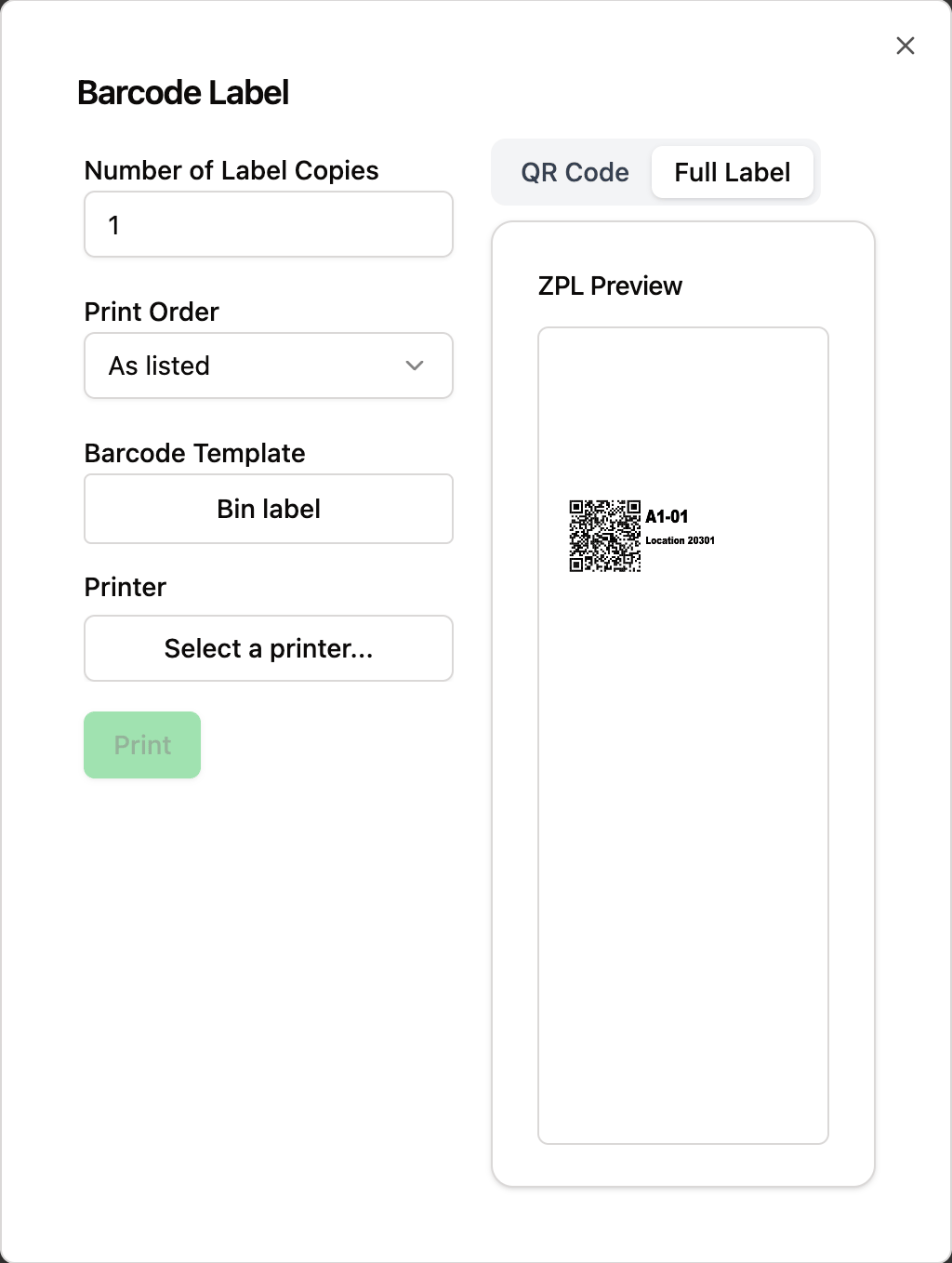
As listed prints the records in the order they’re listed. When you print from a table, such as Factory, Inventory, or Runs, that’s the table’s current sort, top to bottom, not the order you clicked the rows in.
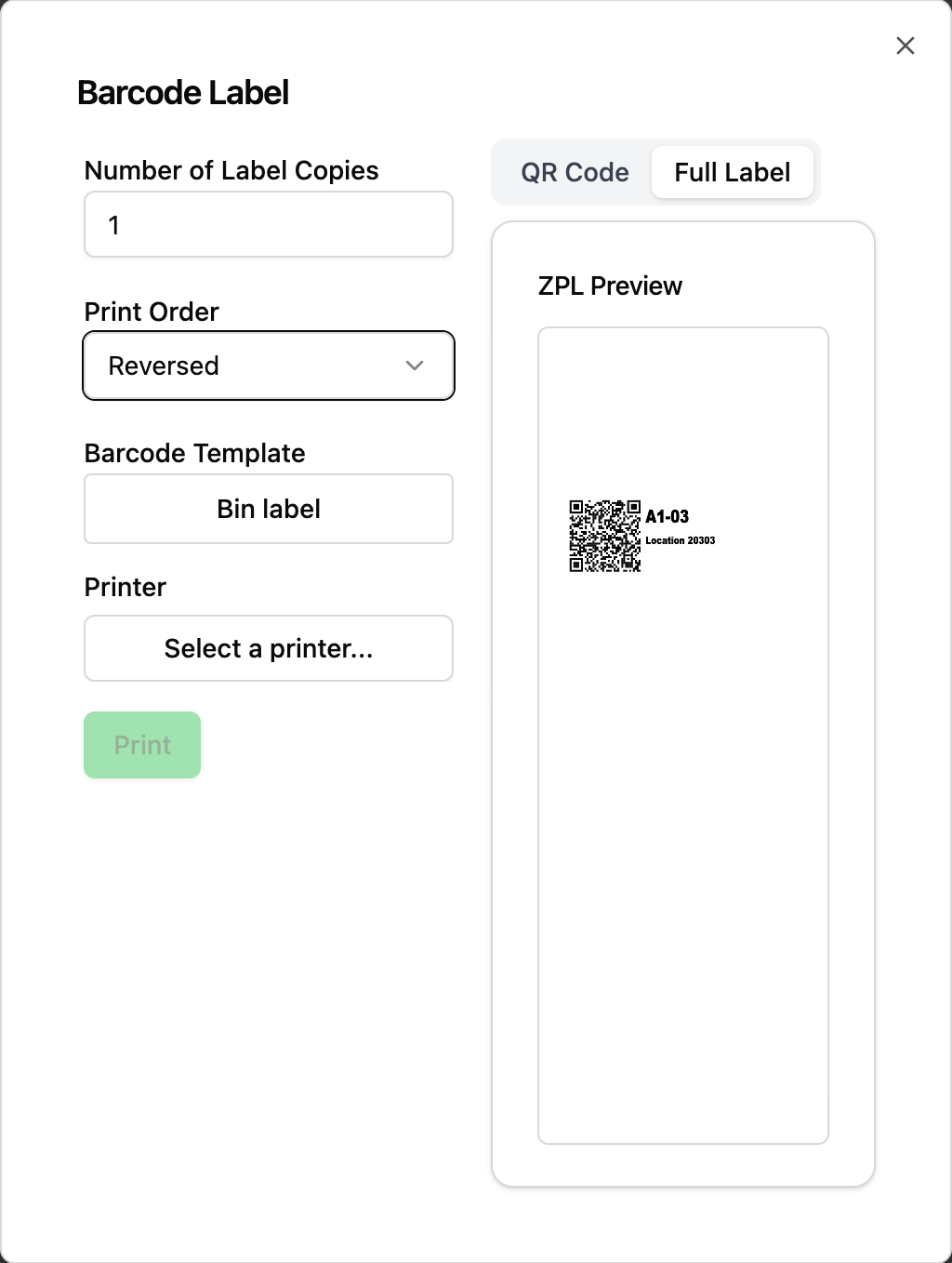
Reversed prints them bottom to top.
The control starts on your organization’s default and applies to this print only. Changing it doesn’t change the default. An admin sets the default in Settings > Organization > Barcode Labels; see Configure barcode labels.The preview follows the order, so switching Print Order switches the label the preview shows.
Two bins selected on the Factory table. Under As listed, the preview shows A1-01, the first row in the table.
The same selection under Reversed. The preview now shows A1-03, which prints first.
On success, ION shows a Print job successful toast. If a print is sent over Zebra Browser Print but the printer doesn’t report its status (common over USB), ION shows a Sent to printer (print not confirmed) warning instead.
A run, a run step, and a run’s created part inventory each have a QR-code button. Click it to open a dialog with a QR code tab and a Print label tab.
On the QR code tab, scan or copy the value. On a run or run step, the QR code links to the run or run step so a phone camera opens it in the browser. On a created part inventory, the QR code holds the serial number, and the copy control reads Copy serial number. When the part has no serial number, the code falls back to the lot number, then the part number.
On the Print label tab, print a barcode label the same way as the Barcode Label dialog. A run or run step prints a Runs label, and a created part inventory prints an Inventory label. An admin configures these templates in Settings > Organization > Barcode Labels.
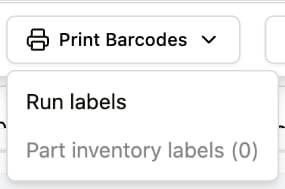
Selecting rows in a table reveals a floating toolbar with a Print Barcodes action, which opens the Barcode Label dialog for the whole selection.On the Runs page, Print Barcodes is a menu with two options, because a run and the inventory it produces take different templates:
Run labels prints a Runs template for every selected run.
Part inventory labels (N) prints an Inventory template for each selected run that has a part inventory. N is the number of those runs, and the option is disabled when it’s 0.
The Print Barcodes menu on the Runs page, with one run selected that has no part inventory.
To print a pick run’s kit and inventory labels, see Pick runs.
Each template encodes a specific format. If your scanners need a specific encoding, have an admin configure a template that produces it rather than reformatting it by hand. See Create label templates.
When an admin adds a new template, scan a printed label with the scanner the floor uses. Encoding compatibility isn’t always obvious from the preview.
The Printer picker is disabled and reads Unavailable
ION couldn’t load printers, and the reason appears in red under Printer. Follow the steps for your print mode:
Browser mode: Confirm Zebra Browser Print is running on the workstation. Click the Check the status link next to Printer, which opens https://localhost:9101/available in a new tab, to verify the local print service is responding. If the page errors, restart Zebra Browser Print and reload ION.
Print server mode: The Check the status link doesn’t appear. Confirm the print server is reachable and the printer is registered with the print server. On persistent failure, escalate to an admin to verify print server health.
There is nothing to preview and Print is disabled
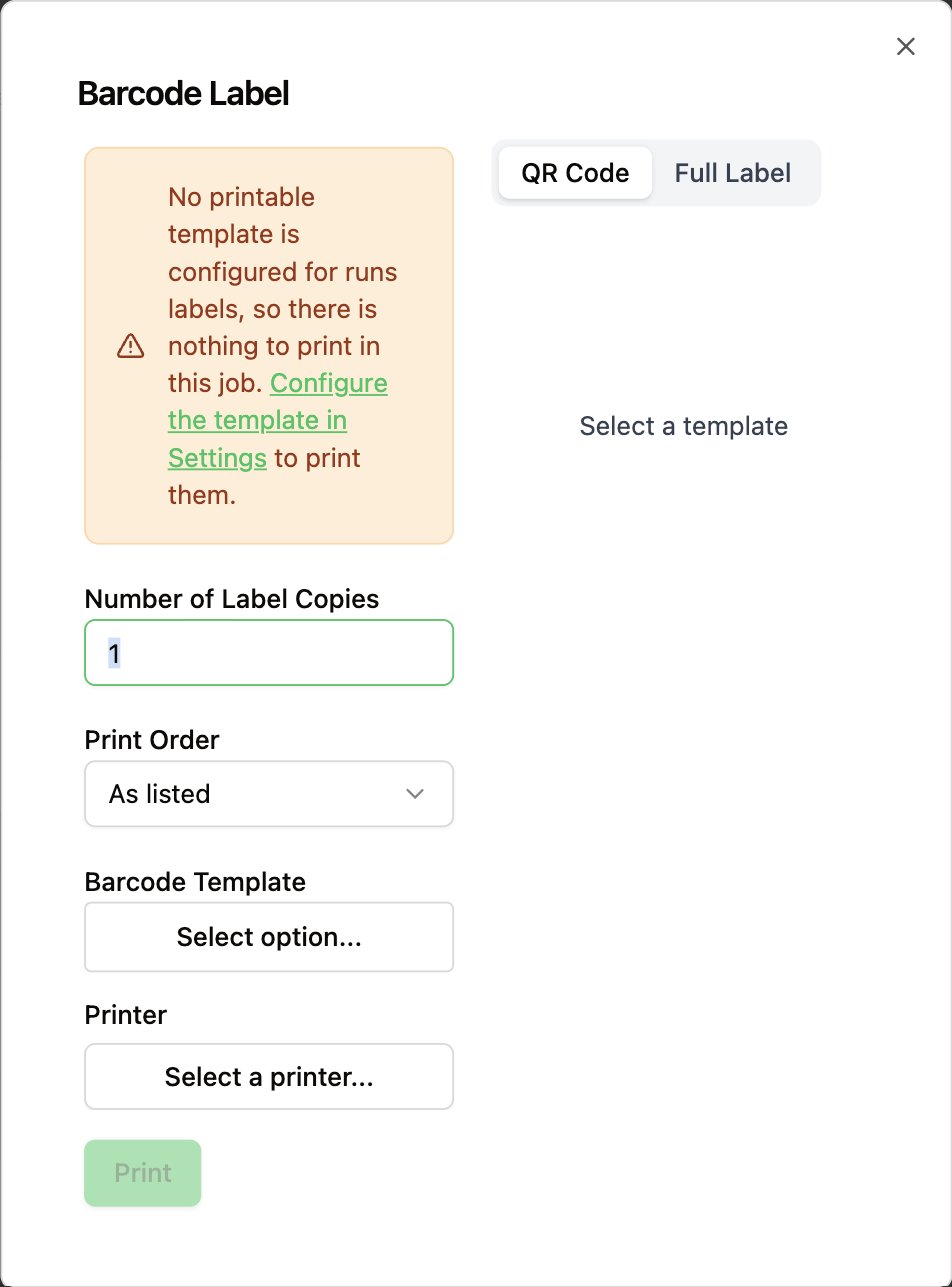
The entity type you’re printing has no usable template. The dialog says which one:
No printable template is configured fortypelabels means the type has no active template, so there’s nothing to print. Follow the Configure the template in Settings link, or ask an admin to add one.
This template has no ZPL content configured means the selected template exists but its body is blank.
On a job that mixes two entity types, such as the labels for a pick run, the types that do have a template still print, and the message names only the type that’s left out.
Printing run labels when no active Runs template exists: the dialog names the missing type and Print stays disabled.
Labels print but barcodes won't scan
This is most often a template mismatch, where the template encoding doesn’t match what your scanner expects. Try a different template. If no template scans correctly, request a template change from your admin.
Print started but nothing prints
If ION shows Sent to printer (print not confirmed), check that the printer is powered on and connected. In print server mode, check the print server’s job queue to see whether the job is queued, printing, or errored.
Was this page helpful?
⌘I
Assistant
Responses are generated using AI and may contain mistakes.