Create a label template
- In ION, go to Settings > Organization > Barcode Labels.
- Under Label templates, open the tab for the entity type the template applies to: Inventory, Kits, Locations, or Runs.
- Render your ZPL with the open source Labelary service to get the sizing and spacing correct.
- Insert variables to inject record data. Templates use a syntax like
${serialNumber}. The Available Fields panel lists every variable you can use, and clicking a field inserts it into the ZPL Template editor at the cursor. - Under Template Settings, set the template’s name, print density (DPI), and label height and width.
- Click Create Template for a new template, or Save Template for an existing one.
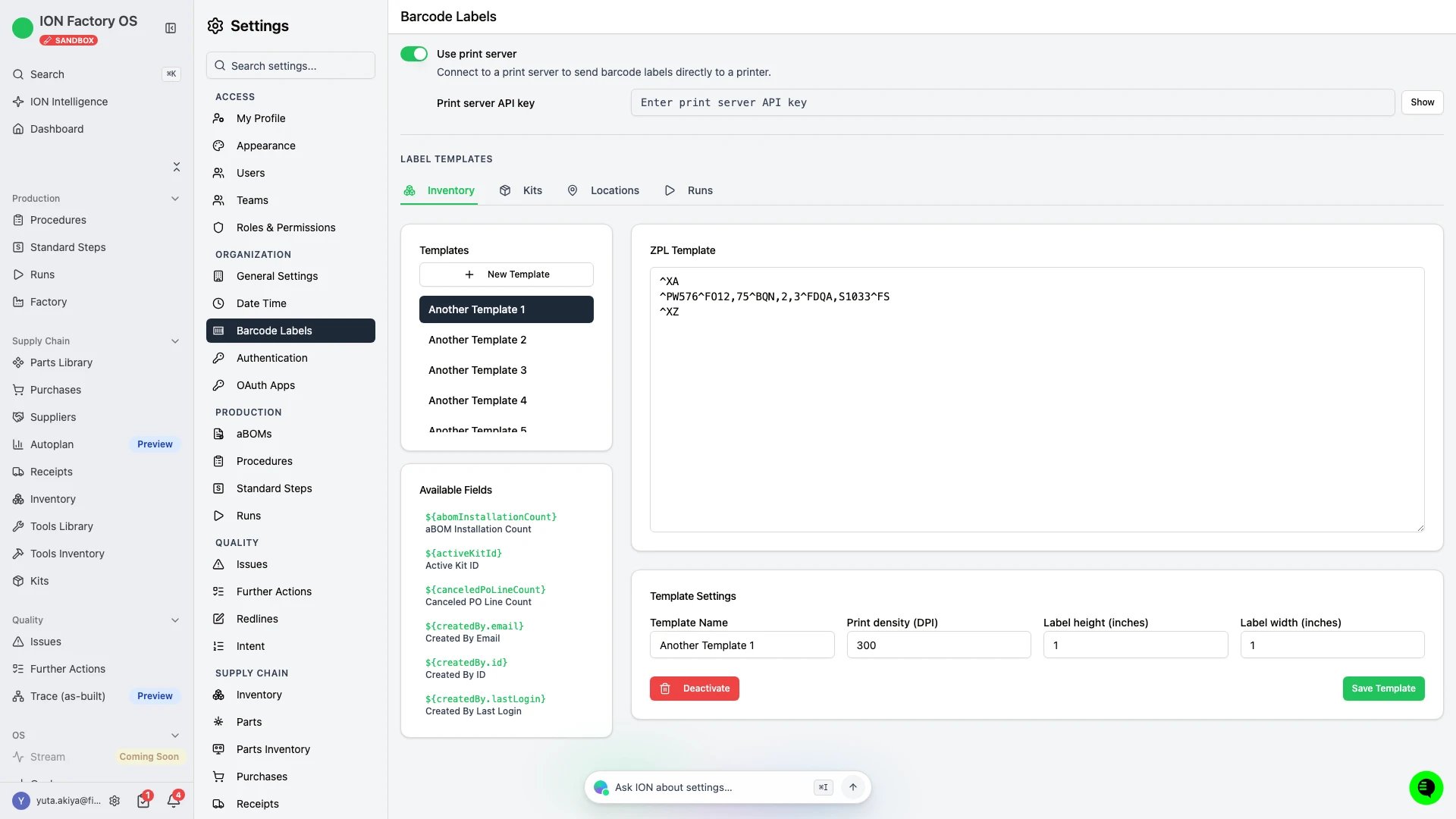
The ZPL Template editor with the Available Fields panel and Template Settings.