Add a step
- While editing a procedure, click Add Step at the bottom of the steps list, or hover over an existing step and use its … actions menu to Add step below or Add child step. The Add Step dialog opens on the Create New tab.
- Enter the Step Name and choose the Step Type, Content or Datagrid. Optionally set a Location and toggle Outside Processing Step.
- Click Create Step.
To reuse an existing step instead of creating a new one, switch to the Add Existing Step tab and search for the step to copy. See Copy a step. Content steps hold written instructions. The content box supports text formatting: colors, lists, fonts, pictures, and tables.When using tables in steps, set them up in Google Sheets and paste them in. Excel is less reliable because formatting isn’t copied over, though the content still works.
Attachments
Attach reference files to a step from the Attachments panel. Click Browse files to upload a file, or Take a photo to capture one. Datagrid steps collect tabular data. Each cell is a field an operator fills in when the procedure is run.Columns
A datagrid supports any number of columns. Each column has a name and a data type, and can be set Read only so it can’t be edited when the step runs.Rows
A datagrid supports any number of rows. Use the Required toggle to require a row be filled in when the step runs. Old ION compatibility
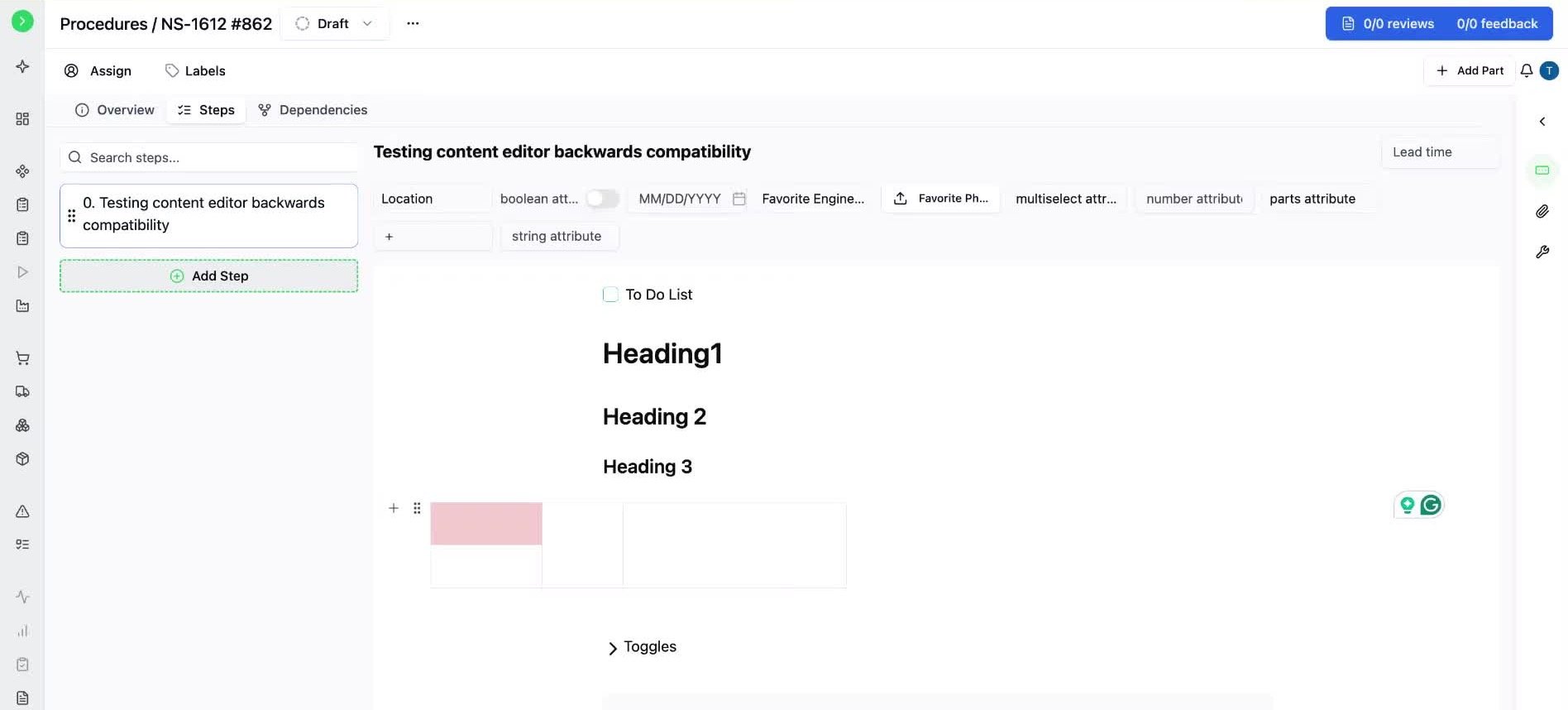
Content steps support rich formatting, such as to-do lists, headers, tables with merged and colored cells, toggles for hidden content, code blocks, block quotes, callouts, and a table of contents.
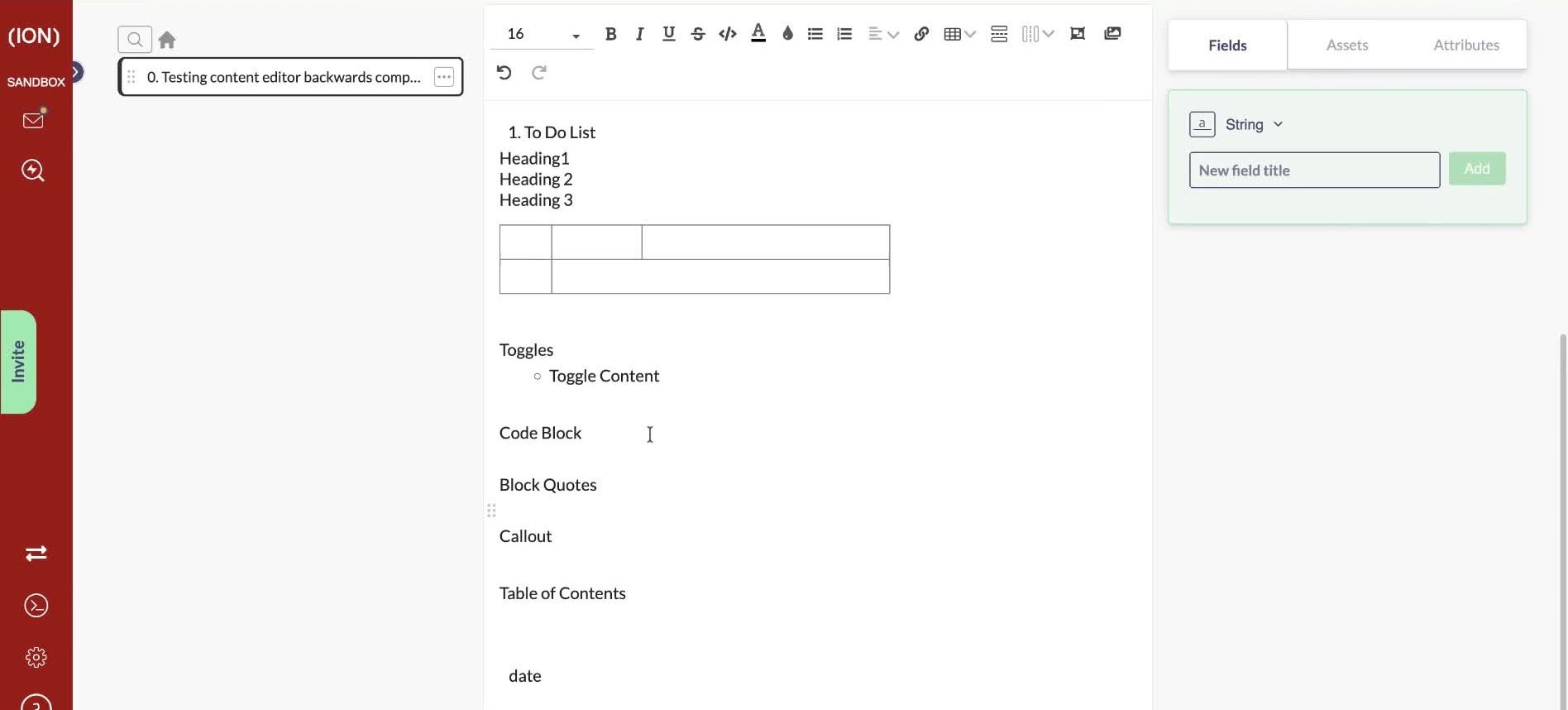
A procedure you draft here, along with its runs, can behave differently in Old ION. Rich formatting does not carry over: to-do lists lose their checkboxes, headers and tables lose their formatting, and toggles, code blocks, block quotes, callouts, and the table of contents do not appear.
If your team still works in Old ION, check how a procedure renders there before relying on this formatting in production work instructions.