Claim a kit from the queue
The Kit request queue on the Kitting page lists the kits waiting to be filled.- Filter the queue with Open, My kits, or All.
- Search by kit number, run, or part number with Search kit #, run, or part #.
- Click Claim on a kit to take it. It moves into your My kits filter, so the rest of the team can see it is being handled.
<n> pill.
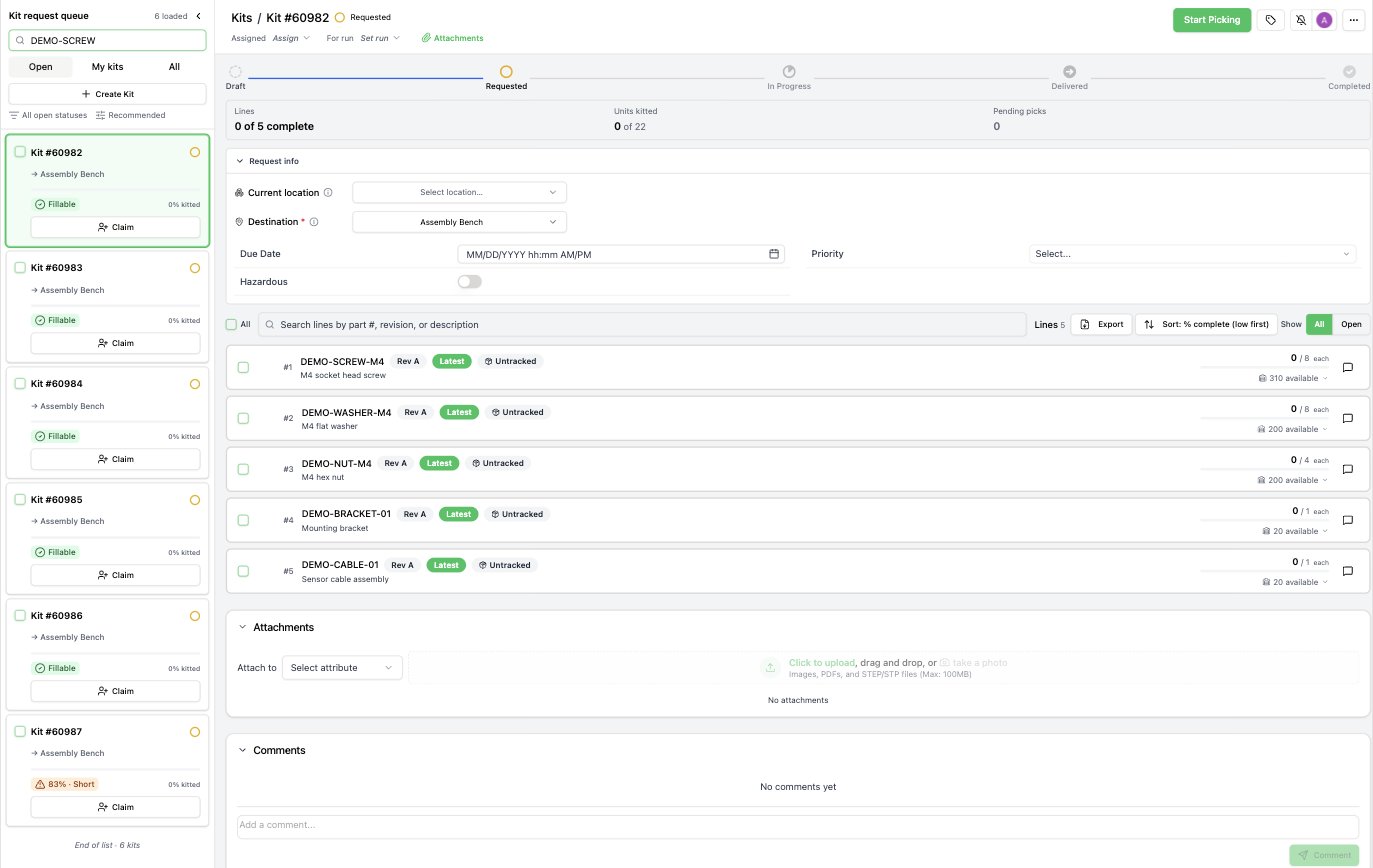
The kit request queue filtered by a part number and sorted by Recommended. Each card shows its destination, fillability badge, and Claim button.
What the fillability badge means
The badge reads Fillable when every line can be picked from available stock, or<n>% · Short when it cannot. The percentage is the share of the kit’s remaining need that free
inventory can cover.
Two things it deliberately does not tell you:
- It is scored for that kit alone. Kits picked together in one run share the same inventory, so a batch can fill less than the individual badges suggest.
- It is advisory. The score is recalculated when its inputs change, so another transaction can consume stock the score still counts. The pick list at allocation time is the authority.
Create a pick run
- Select the kits you want to pick together using their checkboxes.
- Optional: check Consolidated pull. See Per kit or consolidated.
- In the bar at the foot of the queue, click Pick run for
<n>kits.
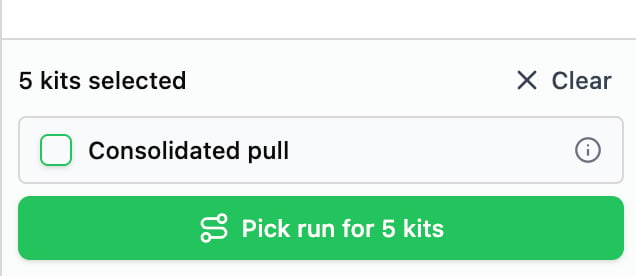
Five kits selected, with Consolidated pull available before the run is planned.
<n> and Cancel so you can finish or release it
first.
Per kit or consolidated
A run is planned in one of two modes, and the mode belongs to the run: you choose it when you plan, and it can’t be changed afterwards.- Per kit (the default). Each row on a stop is split per kit, so you can see how many units of that lot belong to which kit before anything leaves the shelf.
- Consolidated pull. As the checkbox’s own hint puts it, you “pull each part once per bin for the whole batch and sort to kits at the bench, instead of walking a separate pick for every kit.” Each row shows one quantity for the whole batch.
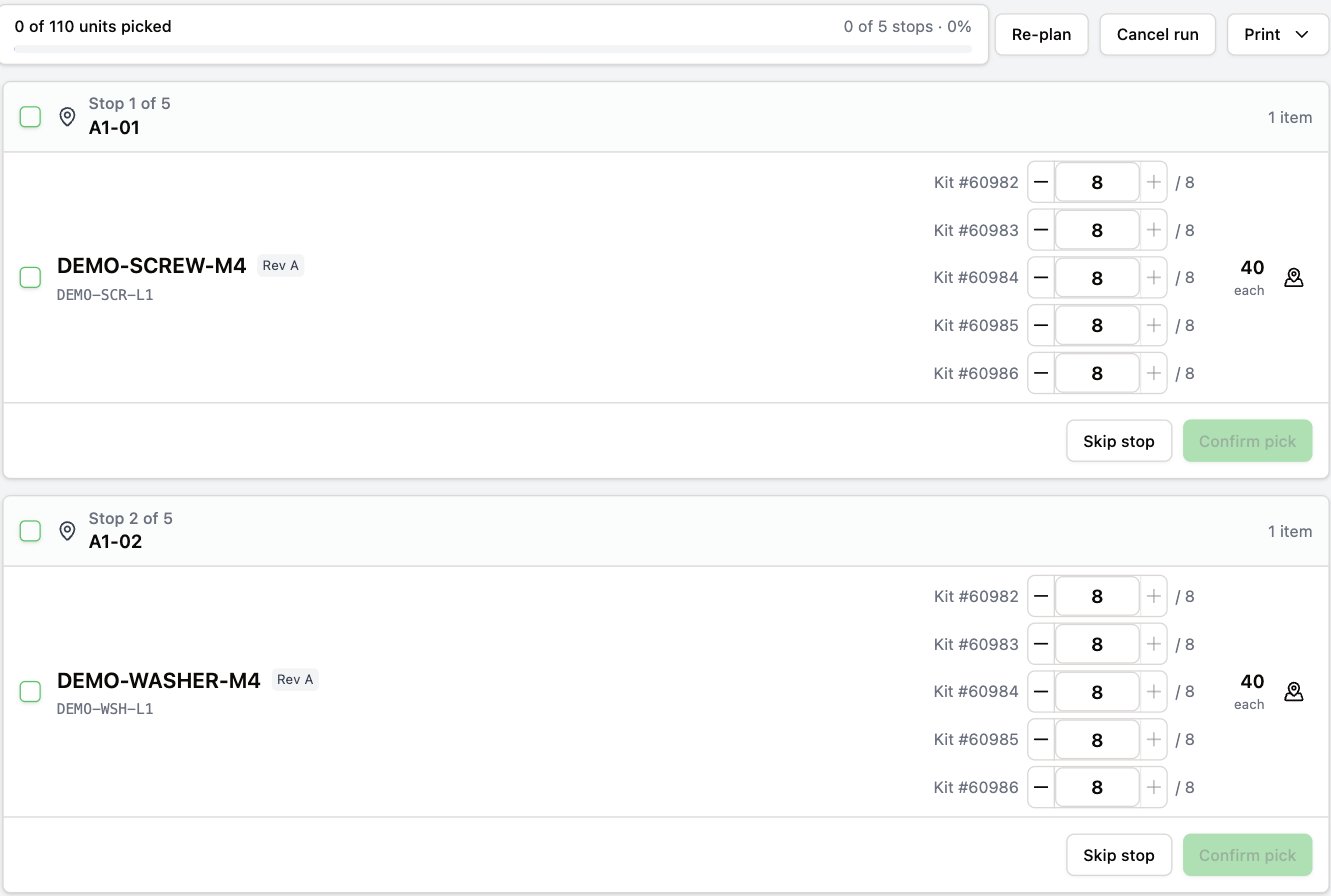
A per-kit run. Each lot on the stop is split into one row per kit.
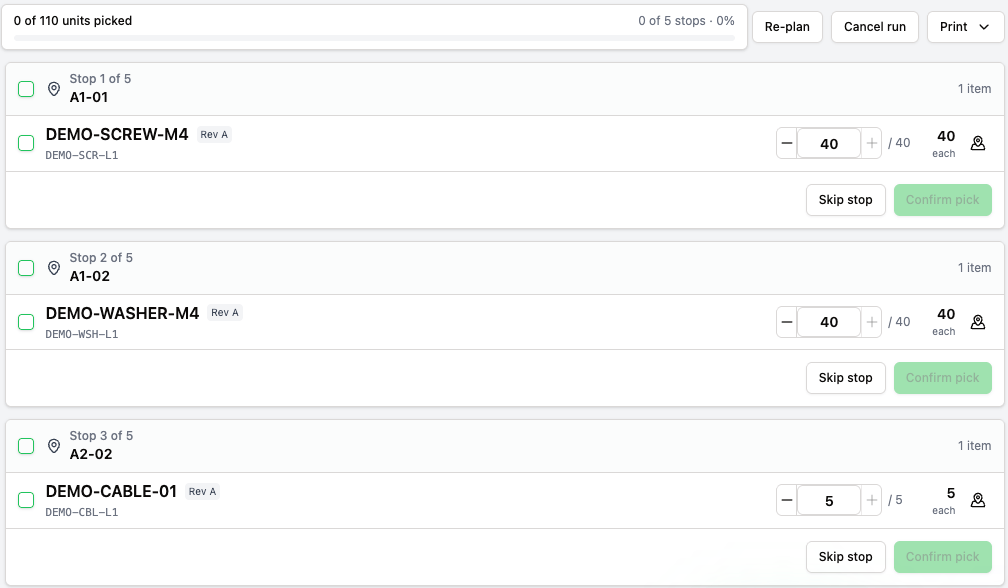
The same five kits planned as a consolidated pull. Each lot on the stop is one quantity for the whole batch.
Walk the run
On the pick run page, each stop is one bin, and its rows are the inventory to pull there. The bar at the top counts units and stops picked.How the route is ordered
Stops follow the pick order set on your locations, which runs across the whole site. Stops without a pick order come after every ordered stop, in bin-name order, and stock with no location comes last. To set the order, see Manage locations. A kit line filled from more than one bin walks at the earliest of them. One kit line can span several lots, so it can appear at one stop while its remainder sits at another.Confirm a stop
- Tick each row as you pull it, or tick the stop itself to tick all of its rows. Confirm pick needs every row ticked.
- Adjust a quantity inline if you pulled less than planned. The kits keep the shortfall as remaining need.
- Click Confirm pick. This is the moment the stock moves: that bin’s inventory is issued into the kits, and the run moves on to the next stop.
Scan to confirm
Scanning an inventory label ticks the row it belongs to, without a tap. Both a wedge (HID) barcode gun and the phone camera work.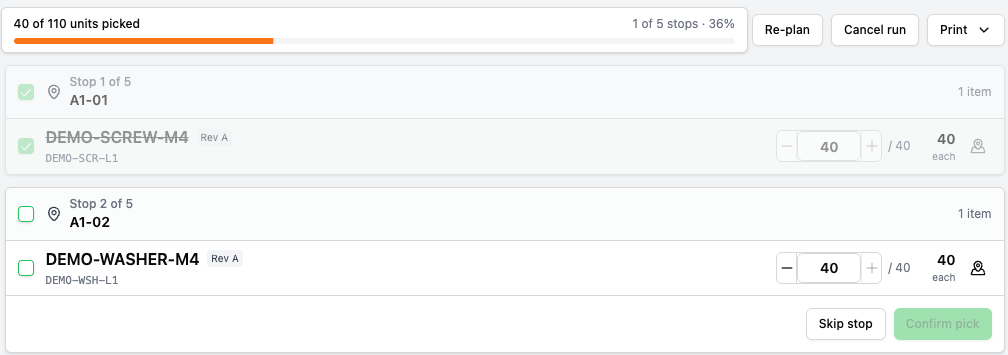
Scanning the label on a stop's only remaining row confirms the stop.
When you scan something the stop doesn’t plan
ION doesn’t accept it silently. It opens That is not the planned item, shows what you scanned, and asks Which planned item does it replace? Choose the row and click Use scanned instead. Using it records the scanned lot against the stop and why the pick diverged. Nothing moves yet: the stock moves when the stop is confirmed, or immediately if it was the last row you had left. The plan itself is left alone.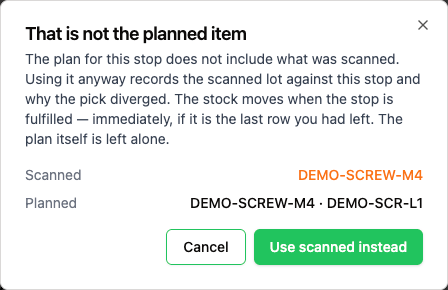
Scanning a lot the stop doesn't plan opens a prompt before anything is recorded.
Pick from another location
When the planned bin is empty or the stock there is unusable, click the location icon on a row. The Pick from another location dialog lists the part’s other stock in the order ION recommends it. Choose the lot you actually took and click Use this lot. ION records it against the stop when you confirm.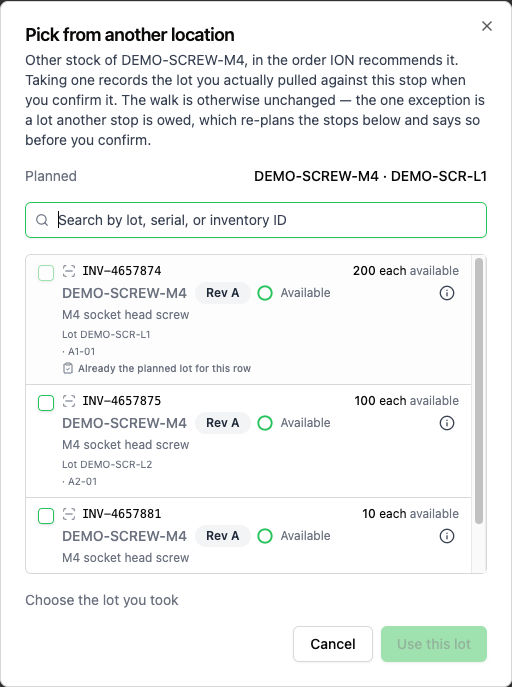
Other stock of the part, in the order ION recommends it.
A lot another stop is using
Picking a lot another stop of the same run also wants is allowed, and ION tells you what it costs:- A lot another stop is owed. The row reads Already owed to stop
<n>·<bin>. When you choose it, ION warns that it “spends the claim held by” that stop and that the stops below will be re-planned. Confirming releases the other stop’s claim and rebuilds the rest of the walk around it, so a later stop may move to a different bin or lot. ION refuses the pick only when the re-plan can’t cover what it released, and says why on the row. - A lot staged on another stop. A lot you’ve already chosen as a substitute on another open stop
on this page reads Already staged by stop
<n>·<bin>and can’t be chosen again until that stop is confirmed or changed. Staging reserves nothing: it’s a choice on this screen that ION only records when the stop is confirmed. If another device takes the same lot first, ION refuses whichever confirm comes second. - A lot another pick run holds. ION refuses it. Claims held by a different run aren’t released.
Skip a stop
Click Skip stop when a bin cannot be picked. ION asks for a reason:Re-plan a run
Click Re-plan when the plan no longer matches the floor. Stops you have already picked or skipped are kept exactly as they are. Only the pending stops are rebuilt against current stock, and they’re re-sequenced so the walk still runs forward from where you are.Sort the cart
Once every stop is done, the run page shows Sort the cart: one section per kit, listing the lines and quantities that were picked for it, and the bin and lot each came from. Tick a line, or tick a kit to tick all of its lines, as you move parts from the cart into each kit’s container. Ticking only keeps your place. The stock moved into its kit when you confirmed the stop, so nothing you tick here changes what ION holds.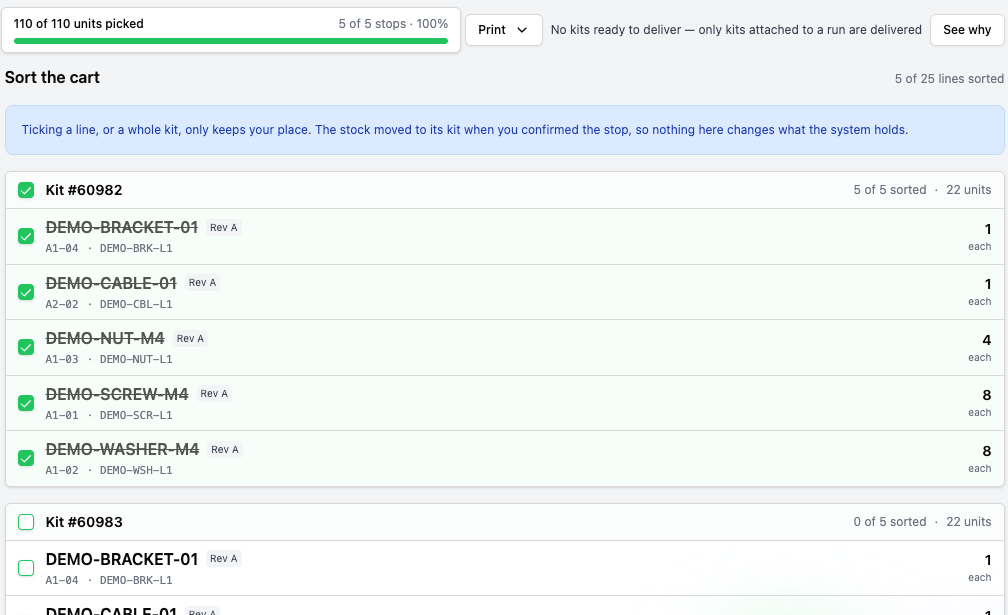
Sort the cart after a finished run. The first kit is ticked as a whole.
Print from a run
The Print menu groups what it prints:- Paper
- Pick sheet: the stops in walk order, for a picker working from paper.
- Kit audit sheets: a sheet per kit with hand-tick Picked and Confirmed columns.
- Labels
- Kit labels: one label per kit the run plans to fill, in walk order, so you can tag empty totes before the first stop.
- Kit + assembly labels: the kit labels, plus one label for each assembly the kits’ runs are building. Several kits feeding one run share a single assembly label.
- All labels: appears once the run is complete, and adds the labels for everything the run kitted.
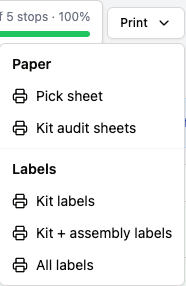
The Print menu on a completed run. All labels appears only once every stop is done.
Mark kits delivered
When the run is complete, click Mark<n> kits delivered. Only kits attached to a run can be delivered this way. When none of the run’s kits are, the bar says No kits ready to deliver and See why lists the reason for each. The count is the kits the delivery
will actually move. Delivered moves each kit to its delivery location, and its kitted inventory with
it. The pick run itself is unchanged.
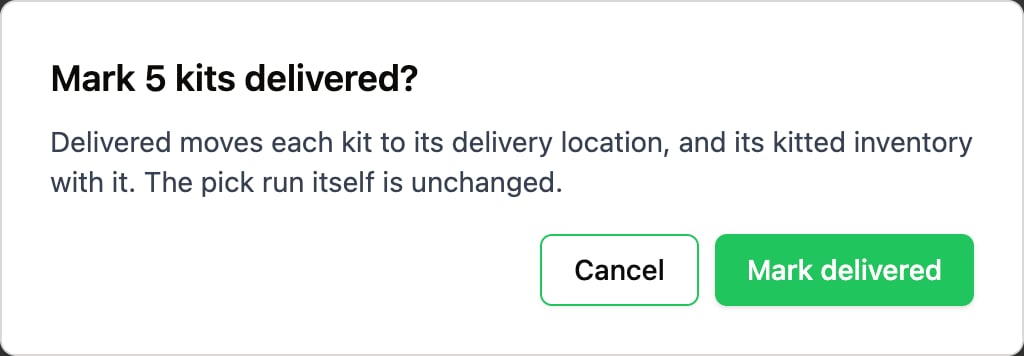
The confirmation names how many kits will move.
Cancel a run
Click Cancel run to abandon a walk. The remaining walk is abandoned and the stock it was holding is released, so its kits can be planned onto a new run. Stops you’ve already picked are kept, and their stock stays in the kits. Cancelling can’t be undone, and a cancelled run becomes read-only.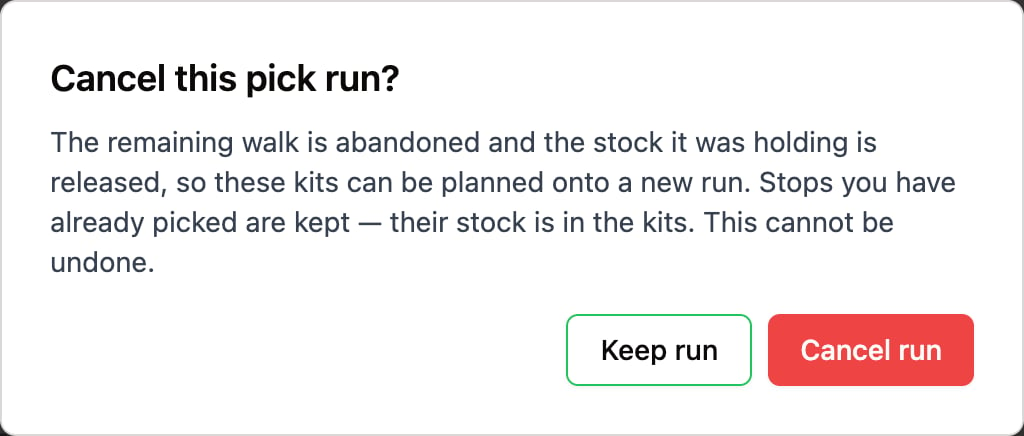
Cancelling releases what the run was holding and keeps what was already picked.
Find a run on the Kit Pick Runs page
Kit Pick Runs in the sidebar lists pick runs with their status, planner, location scope, batch mode, progress, expiry, and when they closed. Click a run number to open it. A live run has a Resume action. The page opens on live runs only: pending and in-progress. That narrowing is an ordinary filter, so the filter button shows it and Clear filters removes it. When it hides everything, the page says a status filter is narrowing the view and offers Show all statuses. Your filter choice is kept for the next visit.
The Kit Pick Runs page with its live-only default, and the way out of it.
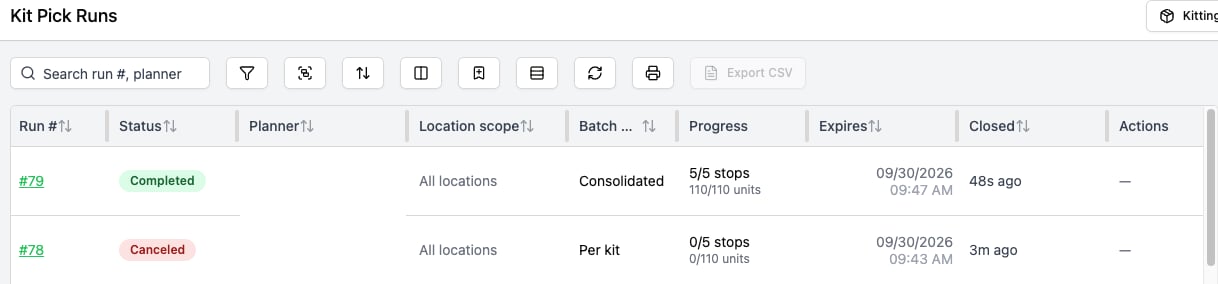
All statuses, with the mode each run was planned in. The Planner column has been blanked in this capture.