Create a purchase order
- In ION, go to the Purchases page.
- Click Create Purchase Order. ION creates the purchase order and opens its detail page.
- Set the supplier on the purchase order using the Supplier field.
- In the Purchase Order Lines card, click Add Line. For each line, set the part, quantity, cost, and any other details for the purchase.
- Optional: attach a quality clause to a line so the supplier delivers against it. See Attach a quality clause to a line.
Edit purchase order lines
You edit lines directly in the Purchase Order Lines card. Line editing is available while the PO is in Draft. Once the PO moves past Draft, the lines card is read-only, so return the PO to Draft to change a line. To edit a cell, click it and enter the value. These cells edit inline: Part, Description, Supplier Part #, Project, Charge Account, Labels, Qty, Unit Cost, Fee Exempt, Quality Clauses, Need Date, ETA, and Original ETA. Total Cost, Qty Received, and Receipts are calculated and not editable. Project and Charge Account tag the line with the programme it’s for and the account it’s charged to. Each picker lists your organization’s active entries by code and title, searchable by either, and Clear selection removes the value. A line that already uses an entry that was archived afterwards keeps showing it. To maintain the lists, see Manage projects and charge accounts.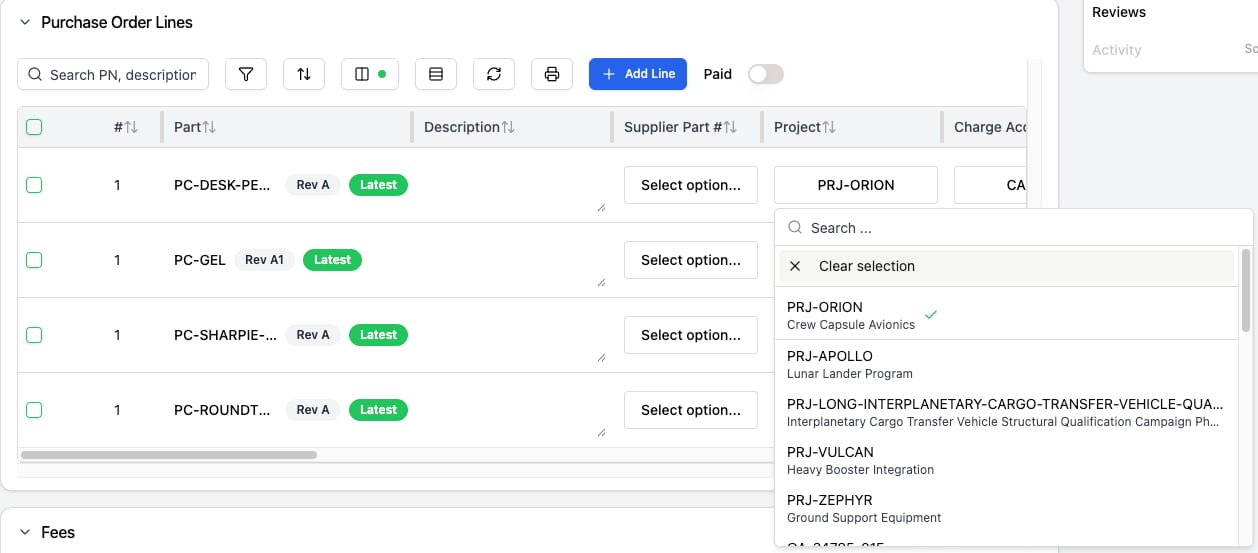
The Project picker on a purchase order line, listing projects by code and title.
- In the Supplier Part # cell, type the supplier part number.
- When no supplier part matches it exactly, select the Create option for that number.
- In the Create Supplier Part dialog, fill in the units, conversion factor, and optionally the cost. The supplier is fixed to the PO’s supplier, and the part to the line’s part.
- Click Save. ION creates the supplier part and sets it on the line.
You can’t change a PO’s Supplier while any line carries a supplier part from a different supplier. Clear Supplier Part # on those lines first, or pick the supplier they belong to.
A line’s ETA and Original ETA, and the line-level and PO-level Paid toggles, stay editable even after the PO leaves Draft. See Mark a purchase order paid.
Act on selected lines
Select one or more line checkboxes to open a toolbar with bulk actions:- Copy duplicates each selected line on the same PO. Available only while the PO is in Draft.
- Change Attributes opens a command bar to set a field or custom attribute across all selected lines at once.
- Add OSP Run links the line to an outside-process run step. Available when you select one line whose quantity is zero.
- Cancel Line cancels the selected lines. Available only when every selected line is in Draft.
- Delete permanently removes the selected lines. Available only while the PO is in Draft.
Attach a quality clause to a line
A quality clause is a requirement the supplier must deliver against. You attach clauses per line in the Quality Clauses cell.- In the Purchase Order Lines card, click the Quality Clauses cell on the line.
- Search for a clause by its reference name or title, then select it to attach it. Repeat to attach more than one.
- To remove a clause, reopen the cell and clear the clause from the selection.
Comment on a purchase order
Use comments to leave notes on the PO or on a specific line. Type@ in a comment to mention a teammate.
- To comment on the whole order, use the Comments card on the PO detail page. Enter your note and post it.
- To comment on a line, click the message icon in the line’s Comments column. A Comments panel opens on the side where you can read and add notes for that line.
Add labels to a purchase order
Labels are shared tags you apply across ION to group related records. For creating and deleting labels in the shared library, see Labels. To add a label, click Labels (or Add labels when the purchase order has none), then type in the Search or create labels… box and select it.Attach files to a purchase order
Attach files such as images, PDFs, and STEP/STP files, up to 100 MB each.- On the purchase order, find the Attachments section.
- Add a file by dragging it onto the upload area, clicking to browse, or taking a photo on a device with a camera.
When a file is attached through a file-type custom attribute, the delete dialog offers Remove from attribute (keeps the file but detaches it) and Delete permanently.
Mark a purchase order paid
The Paid toggle sits in the Purchase Order Lines card header, next to Add Line. Turning it on records the order as paid. Each line also carries its own Paid toggle in its row.Add fees to a purchase order
Fees cover charges that aren’t tied to a single line, such as tax or shipping.- On the PO, find the Fees card and click Add Fee.
- In Add New Fee, enter a Fee Name.
- Choose Fixed Amount or Percentage, then enter the amount or percentage.
- Save the fee. It joins the Fees Total in the Cost Summary.
Add supplier instructions and custom attributes
The Additional Information card holds a Supplier Instructions field for notes the supplier should see, along with any custom attributes your org defines for purchase orders.Set an external reference
Set the External Reference field in the purchase order’s Purchase Order Information section to link the PO to an identifier from another system, such as an ERP PO number.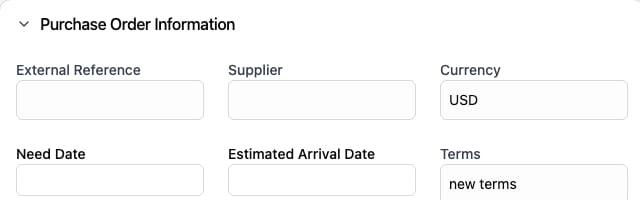
The External Reference field in a purchase order's Purchase Order Information section.
Reuse an order
To start a new purchase from an existing one, duplicate the source PO. ION copies the order into a new Draft PO. See Manage a purchase order.Manage a purchase order
The More options menu in the PO header carries actions beyond the status buttons:- Email opens an email to the supplier with the PO details.
- Print opens the print preview, where you can print or save the PO as a PDF. The sidebar’s checkboxes choose what prints. Company Logo adds the logo from general settings.
- Duplicate creates a copy of the PO you can adjust and submit as a new order.
- Return to Draft reopens a PO for editing. It’s available on a PO in In Review, Approved, Ordered, Received, or Canceled. On a received PO, only the order returns to Draft: lines already received keep their Received status and their inventory, and receiving skips them.
- Cancel PO cancels the order and every line that isn’t received. It’s available on a PO in In Review, Approved, or Ordered.
- Delete permanently removes the PO. It’s available only while the PO is in Draft.