Start creating an issue
You can start an issue from several places in ION. Use the one that fits where you are:- Press Cmd+Shift+I (Mac) or Ctrl+Shift+I (Windows) from any page.
- On the Issues page, click New Issue.
- On a run step, click Create Issue to attach that run and step automatically.
- Select one or more rows in an inventory, receipt, or purchase order table, press Cmd+K to open the command palette, and choose Create Issue to attach the selected parts.
Fill in the issue details
Fill in the fields you need. Title is the only field that’s always required; others can become required from what you enter, such as a Run Step once you pick a Run.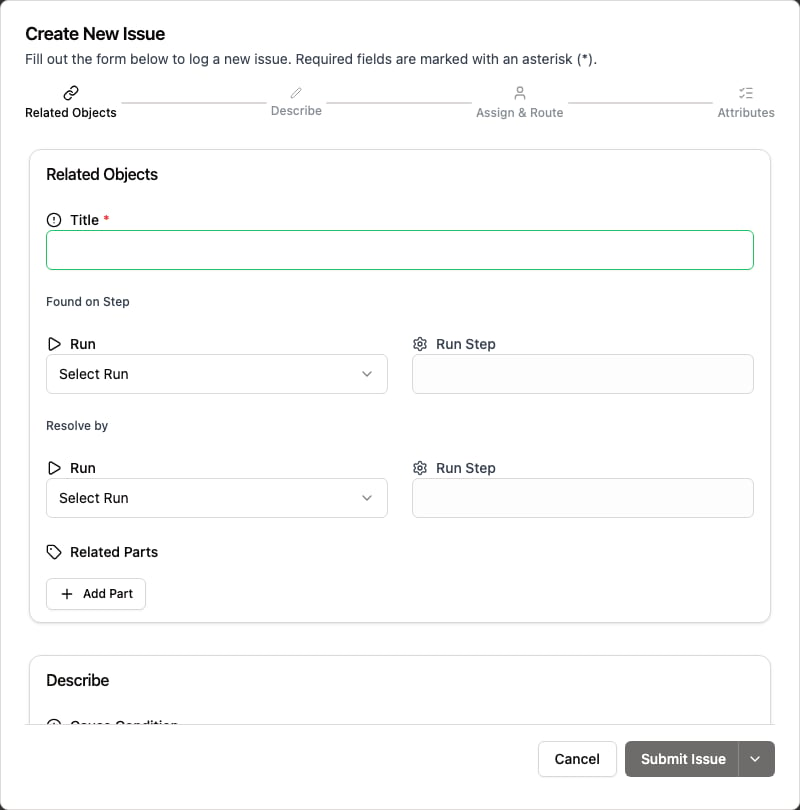
The Create New Issue form.
- Enter a Title.
- Optional: under Found on Step, select the Run and Run Step where the problem appeared. Selecting a run requires selecting its step.
- Optional: under Resolve by, select the Run and Run Step that must be completed to resolve the issue.
- Optional: add the affected inventory under Related Parts. For a part tracked by quantity, enter the number of affected units.
- Optional: describe the problem in Cause Condition and what the result should have been in Expected Condition.
- Optional: attach photos, measurements, or documents under Attachments.
- Optional: set Move to Location to send the affected inventory to a location such as a quarantine area, and Assign to to assign the issue to a user or team.
- Set any custom Additional Attributes your organization configures. Some can be required before you can submit.
- Click Submit Issue. To raise another issue right away, click Submit & Create New instead.
Your organization can rename Cause Condition, Expected Condition, and Disposition, so the labels you see may differ. See Rename fields.