Clone vs Split
The difference is what happens to the inventory on the original issue when you assign it:- Clone: the inventory stays on the original issue and is also added to the new issue. Use this when the new issues track related investigations of the same parts.
- Split: the inventory moves to the new issue and is removed from the original issue. Use this when you’re dividing the affected inventory so each portion gets its own disposition.
Create the new issues
- On the issue, open the More options menu and select Clone / Split to open the Split into Detail Tickets dialog.
- Click Add Ticket for each new issue you want. For each one, set a Title, a Disposition Type, Disposition Notes, and an assignee.
- In Associate Inventory, select the parts for the new issue. For a lot-tracked part, adjust the quantity to assign.
- Assign the selected inventory using one of:
- Assign to Ticket to clone it (keep it on the original issue).
- Remove & Assign to split it (move it off the original issue).
- Optional: use Copy Settings to choose which fields carry over from the original issue to the new issues.
- Click Create Issues.
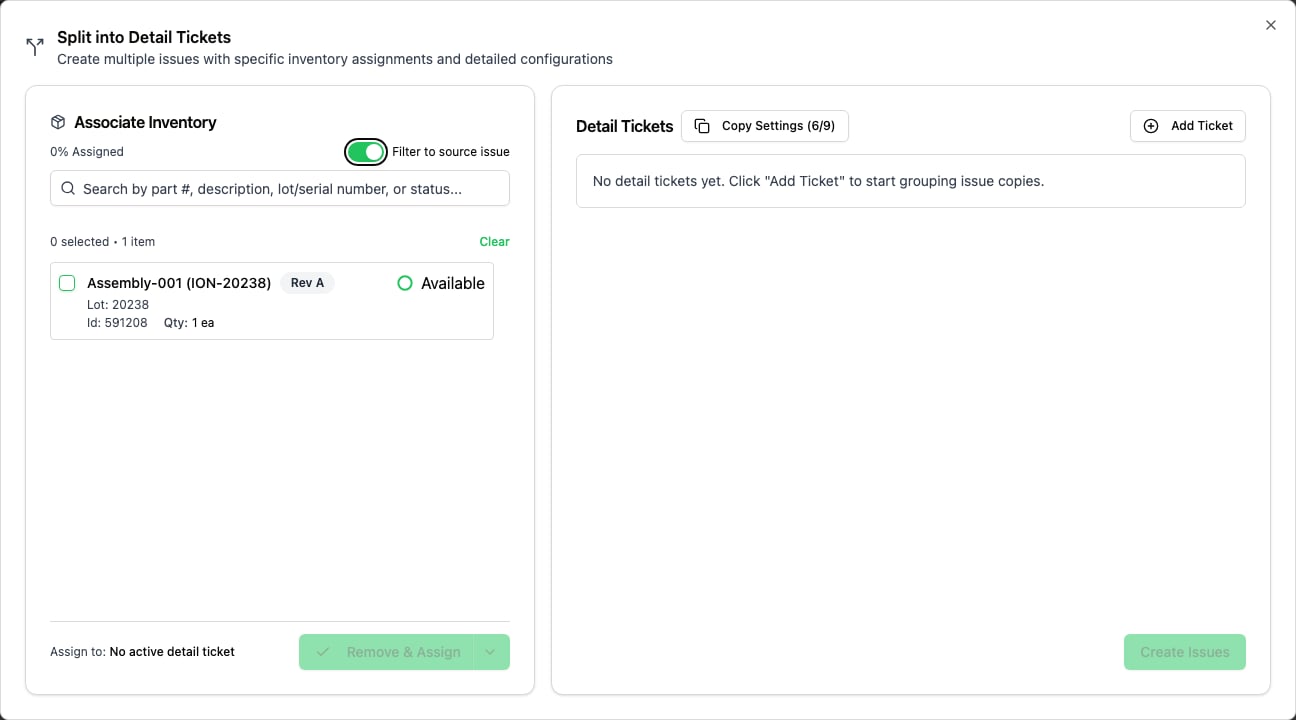
The Split into Detail Tickets dialog, with the Associate Inventory and Detail Tickets areas.
Link related issues
Splitting or cloning links the new issues automatically. You can also link any existing issue by hand.- On the issue, find the Related Issues section.
- Click Add Related Issue and select the issue to link.